ZipScope · macOS · Windows-safe · 100% offline
ZIPs your Windows contacts
ZipScope is a Mac app for compressing and extracting archives. It creates ZIPs that people on Windows can open without garbled file names or .DS_Store clutter, and it extracts ZIPs made on Windows with the right names. Add passwords to ZIP and 7z archives, and browse ZIP, 7z, RAR, LZH, tar.gz, and more without extracting them.
Right-click
to zip
UTF-8 flag and NFC keep names readable
No .DS_Store
inside
__MACOSX and ._ files left out too
Look inside
without extracting
ZIP · 7z · RAR · LZH · tar.gz
Password-protected
ZIP & 7z
ZipCrypto · AES-256 (Pro)
Free to download
macOS 14+ · Apple silicon & Intel · No network access
Three steps, done
To make a ZIP on your Mac that opens cleanly on Windows, right-click the files in Finder, choose Compress with ZipScope, check the settings, and click Create.
Right-click to compress
Select files or folders in Finder and choose Compress with ZipScope, or drop them on the menu bar icon.
Check the settings
Leaving out .DS_Store and NFC normalization are on from the start. Passwords are available with Pro.
Click Create
You get a ZIP whose names stay readable on Windows, and Finder shows it.
The user guide explains every setting and handy trick, with screenshots.
Feature highlights
ZipScope brings together ZIPs that open cleanly on Windows, password-protected ZIP and 7z archives, a browser for looking inside archives without extracting, and a fix for garbled names in ZIPs from Windows, all ready from Finder and the menu bar.
UTF-8 · NFC · .DS_STORE · __MACOSX
ZIPs that open cleanly
"The file names were garbled when they opened my ZIP on Windows." "There's a strange .DS_Store file in it." ZipScope stores file names explicitly as UTF-8 (with the UTF-8 flag) and normalizes them to NFC, so Japanese voiced marks and accented letters don't come apart.
Mac-only files, .DS_Store, __MACOSX folders, and "._" files, are left out by default. Very old unzip tools that don't support UTF-8 may still show wrong file names.

ZIPCRYPTO · AES-256 · 7Z · PRO
Password-protected ZIP and 7z,
Encrypt ZIPs with ZipCrypto (a compatibility mode Windows' built-in tool can open) or AES-256 (strong encryption that needs 7-Zip or similar on Windows), and 7z archives with AES-256. Each option tells you whether Windows can open it, so the person you send it to won't get stuck.
A password generator is included. Password protection is part of Pro, a one-time purchase.

LIST · GRID · QUICK LOOK · DRAG OUT
Look inside
Open ZIP, 7z, RAR, LZH, tar.gz, and more like a Finder folder, without extracting them. See the folder tree, a list with name, size, compressed size, ratio, date, and encryption, or a thumbnail grid for archives full of images.
Press Space for Quick Look, and drag out only the files you need. You can search by file name, too. Select a ZIP in Finder and press Space to see its contents in Quick Look.
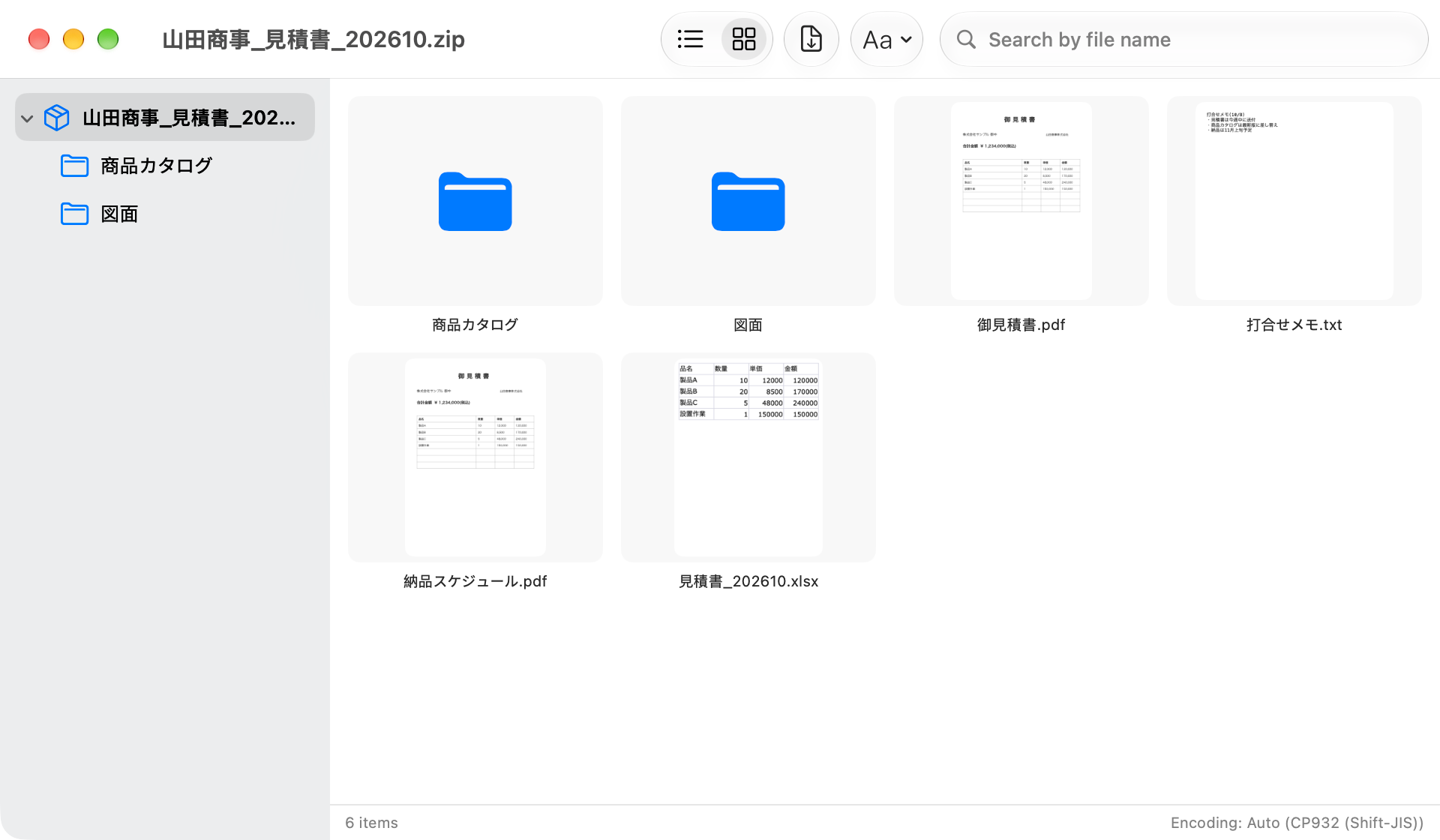
SHIFT_JIS · CP932 · AUTO-DETECT
ZIPs from Windows,
ZipScope automatically detects Shift_JIS (CP932) file names in ZIPs created on Japanese Windows and shows and extracts them correctly. If detection is wrong, switch in one click between CP932, UTF-8, EUC-JP, GBK, EUC-KR, and more.
For ZIPs protected with a Japanese password, ZipScope tries both UTF-8 and CP932 automatically, so "the password is right but it won't open" rarely happens.
✕ Read with the wrong encoding

✓ Detected automatically by ZipScope

DOUBLE-CLICK · NO .DS_STORE
Double-click to extract,
Make ZipScope the default app for ZIP, and double-clicking a ZIP opens an extract dialog. Check the destination and how to handle files with the same name, or click View Contents… to browse instead.
.DS_Store, __MACOSX folders, and "._" files inside ZIPs made on a Mac are not extracted and are hidden while browsing (you can change this in Settings).

THUMBNAILS · PHOTOS
Archives full of photos,
For ZIPs packed with photos, such as shoot data or deliverables, grid view shows them as thumbnails. See which photos are inside before you extract anything.

Works from Finder and the menu bar
- Finder's right-click menu ─ Compress with ZipScope for files and folders; Extract with ZipScope and View Contents with ZipScope for archives.
- Menu bar ─ Drop files on the icon to open the Create ZIP window. Hold Option while dropping to create a password-protected archive (Pro).
- No Dock icon needed ─ You can use ZipScope from the menu bar only.
- Quick Look ─ Select a ZIP in Finder and press Space to see a list of its contents.
Support
The ZipScope User Guide covers everything in detail, with screenshots: creating ZIPs and passwords, the extract dialog, browsing without extracting, garbled names and encodings, Finder and menu bar integration, settings, keyboard shortcuts, and FAQ.
Why Mac ZIPs garble on Windows and how ZipScope differs from the built-in tools is covered in Why ZIPs made on a Mac show garbled file names on Windows; choosing between ZipCrypto and AES-256 is covered in How to create a password-protected ZIP on a Mac.
If you get stuck, find a bug, or want a new feature, send a note via the contact form below.Every message is read by the developer and feedback shapes the next update.
Free to download
macOS 14+ · Apple silicon & Intel · No network access
How it compares with macOS's built-in tools
Unlike Finder's Compress and Archive Utility, ZipScope prevents the garbled names and stray .DS_Store files that come up when you exchange ZIPs with people on Windows. You don't need Terminal to make a password-protected ZIP, either.
| Feature | ZipScope | Built into macOS (Finder's Compress, Archive Utility) |
|---|---|---|
| Leaves out .DS_Store and __MACOSX | ✅ By default | ❌ They can end up inside |
| File names that stay readable on Windows | ✅ UTF-8 flag, NFC normalization | ❌ Names can come out garbled |
| Password-protected ZIPs | ✅ ZipCrypto / AES-256 (Pro) | ❌ Requires Terminal |
| Look inside without extracting | ✅ List, Quick Look, drag out | ❌ Must extract first |
| ZIPs made on Japanese Windows (Shift_JIS) | ✅ Detected automatically, switchable | ❌ Names can come out garbled |
| Files sent anywhere | ✅ No network access | ✅ Processed on the Mac |
Pricing
ZipScope is free to download, and creating ZIPs without a password and extracting and browsing every supported format stay free. Password protection and more come with Pro, a one-time in-app purchase.
| Plan | What's included |
|---|---|
| Free | Windows-safe ZIPs (without a password), extracting and browsing ZIP, 7z, RAR, LZH, tar.gz, and more (with the file name encoding fix), Quick Look, dragging out individual files, thumbnail grid, Finder's right-click menu, the menu bar, and the extract dialog. One archive can be browsed at a time. |
| Pro (one-time purchase) | Password-protected ZIP (ZipCrypto / AES-256) and 7z (AES-256), browsing several archives at once, and Option-dropping on the menu bar icon to create a password-protected archive. Not a subscription. See the App Store for the current price. |
Supported formats
ZipScope extracts and browses ZIP, 7z, RAR, LZH, tar, tar.gz, gz, bzip2, xz, and cpio, and creates ZIP and 7z archives.
| Direction | Formats |
|---|---|
| Extract & browse | ZIP, 7z, RAR, LZH (.lzh / .lha), tar, tar.gz / tgz, gz, bzip2, xz, cpio |
| Create | ZIP (no compression to maximum; password protection with Pro), 7z (AES-256 password-protected, Pro) |
Split archives (.001, .z01, and so on) can't be extracted. RAR can be extracted and browsed but not created. Password-protected 7z and RAR archives may not extract.
Who is it for
- Anyone who sends files to people on Windows ─ No more garbled names or "what's this .DS_Store file?"
- Anyone who sends documents in password-protected ZIPs ─ Check whether Windows can open it before you pick the encryption.
- Anyone who receives ZIPs from Japanese Windows users ─ Shift_JIS file names are detected and shown correctly.
- Anyone who just wants to check what's inside ─ Browse and Quick Look without extracting, and take out only what you need.
- Photographers and anyone handling deliverables ─ See the photos in a ZIP as thumbnails before extracting.
Free to download
macOS 14+ · Apple silicon & Intel · No network access
No network, no worries
ZipScope runs inside the macOS App Sandbox and never uses the network. Compressing, extracting, and browsing all happen on your Mac; your files are never sent anywhere, and no data is collected. Confidential documents and files with personal information stay with you.
FAQ
QPeople on Windows say my Mac ZIPs have garbled file names. Can ZipScope fix that?
QCan I make ZIPs without .DS_Store and __MACOSX?
QCan I make a password-protected ZIP that opens on Windows?
QCan I see what's inside without extracting?
QFile names in a ZIP from Windows are garbled. What can I do?
QCan I create RAR files?
QAre my files sent anywhere?
QWhat are the system requirements?
Download
ZipScope is a free Mac app. Password protection and more are available with Pro, a one-time purchase.
Free to download
macOS 14+ · Apple silicon & Intel · No network access
See the products page for our other Mac apps, such as Image Tool+ for batch-converting images to WebP, AVIF, and more.