How to Save LINE Voice Messages on iPhone Before They Expire
Published by @SoNiceInfo at 11/14/2026
Your family's voices, a birthday message from a friend — when you want to keep a LINE voice message, leaving it in the chat isn't enough: sooner or later it stops playing. This article shows two ways to save LINE voice messages on iPhone, why they stop playing if you leave them, and what happens when you get a new phone. LINE's behavior is based on what LINE's help center says.
Comparison
| Method | How long you can play it | What was said | Finding it | New phone |
|---|---|---|---|---|
| Voice Memories (recommended) | Until you delete it | Automatic transcription | Search by transcription, tags and date | Automatic with iCloud, or a backup file |
| Save to Files | Until you delete it | Listen to find out | File names and folders | Moves with you if saved to iCloud Drive |
| Leave it in the chat | Until LINE's storage period ends | Listen to find out | Scroll back through the chat | Not included in the standard backup |
Why LINE voice messages stop playing
Photos, videos and voice messages sent and received in LINE chats are kept on LINE's servers only for a certain period. LINE's help center says that videos and voice messages can't be played after the storage period ends, and the length of that period isn't published.
- Not carried over to a new phone ─ LINE's standard backup transfers only text messages; voice messages are listed among the data that can't be transferred (a QR code transfer brings items from the last 14 days). The premium backup for LYP Premium members in Japan includes them, but not ones that had already expired before you started using it.
- Keep has ended ─ Many guides used to recommend saving voice messages to Keep, but Keep ended on August 28, 2024. Keep Memo, which is still available, is a chat room for yourself, and its storage period on LINE's servers is limited just like other chats.
- Not in Photos ─ A voice message is an audio file, so unlike photos and videos it can't be saved to the Photos app.
To keep a voice message for good, save it on your iPhone soon after you receive it. Both methods start from Share → Other apps.
RecommendedMethod 1: Save to an app (Voice Memories)
Voice Memories is an iPhone app, developed by the author, that saves voice messages from messaging apps together with their transcriptions. Choose it from LINE's Other apps, and what was said is turned into text automatically.
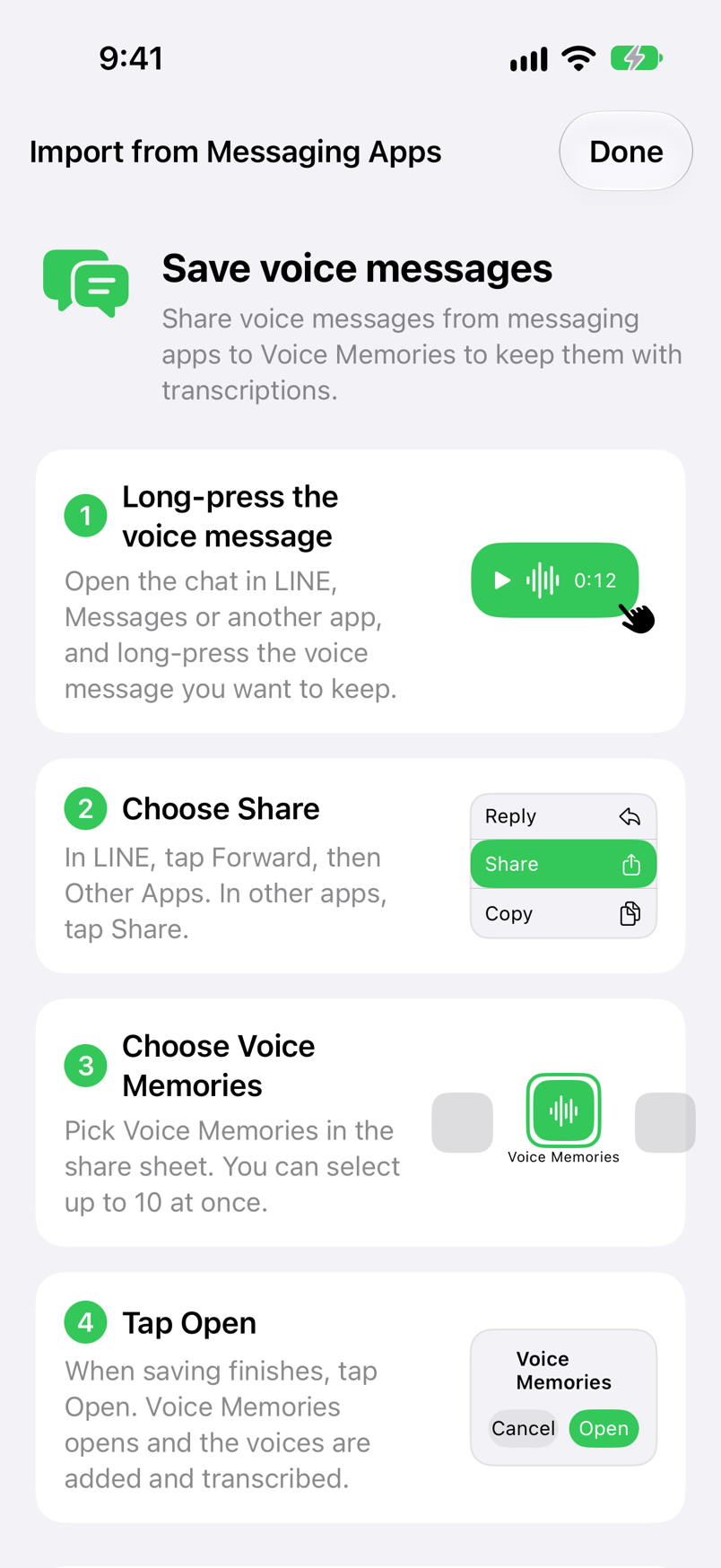
Long-press the voice message and tap Share
In a LINE chat, long-press the voice message you want to keep and tap Share in the menu (転送 in the Japanese app).
Tap Other apps at the bottom right
Check the messages to share and tap Other apps at the bottom right to open the iPhone share sheet.
Choose Voice Memories and tap Open
Tap Voice Memories in the share sheet, then tap Open when saving finishes. The voices are added to the list and transcribed automatically.
The menu labels may differ slightly depending on your LINE version. If Voice Memories isn't in the share sheet, scroll the row of apps to the end, tap More, then tap Edit and turn on Voice Memories. Even if you close it without tapping Open, nothing is lost — the voices are added the next time you open Voice Memories.
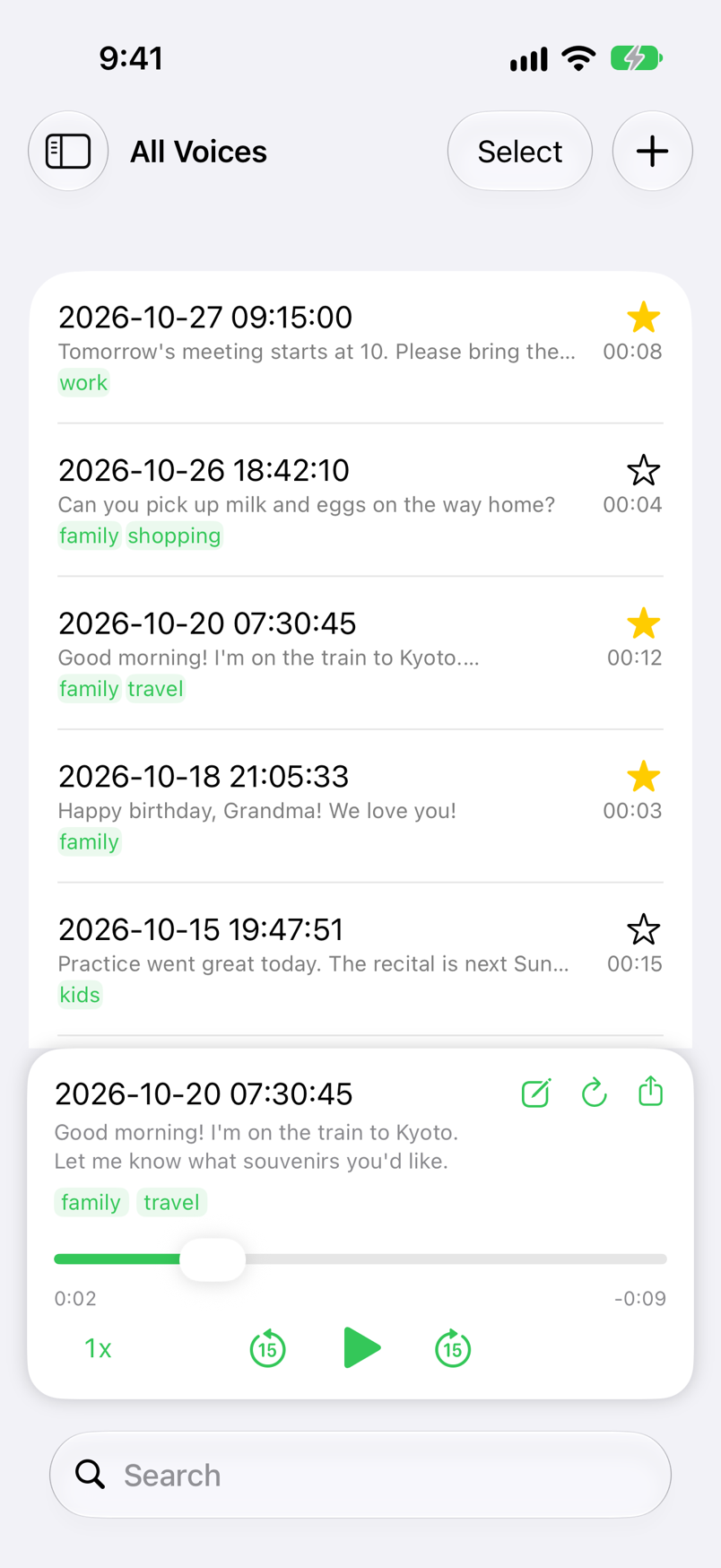
- Automatic transcription ─ The list shows what was said, so you can tell what each message is about without playing it. Recordings longer than a minute are split at pauses and transcribed to the end, and you can redo a transcription or fix it by hand. While it's working, the list shows "Transcribing…" — keep Voice Memories open until it finishes.
- Tags and favorites ─ Open the edit screen with the pencil button in the player and type "family" in the Tags field to add a tag, then play voices by tag from the sidebar. Star the voices that matter most.
- Search ─ Search transcriptions, tags and dates at once.
- Safe on a new iPhone ─ Voices are saved to iCloud and arrive on a new iPhone when you sign in with the same Apple Account. Without iCloud, move them with a backup file.
Saving, playing, organizing and iCloud sync are free. The free plan transcribes up to 5 voices a day; Premium, a one-time purchase, makes it unlimited and removes ads. Voices and transcriptions are stored only on your iPhone and in your own iCloud, and are never sent to the developer's servers (transcription uses Apple's speech recognition).
iPhone & iPad · iOS 18 or later · Free (with ads) · No sign-up
No extra appMethod 2: Save to the Files app
Without installing an app, you can keep a voice message as an audio file in the Files app. The first steps are the same as with Voice Memories.
Long-press the voice message and tap Share
In a LINE chat, long-press the voice message you want to keep and tap Share.
Tap Other apps at the bottom right
Tap Other apps at the bottom right to open the iPhone share sheet.
Choose Save to Files and a location
Tap Save to Files, choose a folder in On My iPhone or iCloud Drive, and tap Save.
Tap the saved voice message in the Files app to play it (on iPhone it's saved as an m4a audio file). It's quick, but you have to listen to know what was said, and the voice you want gets harder to find as the files pile up. To keep it when you get a new phone, save it to iCloud Drive rather than On My iPhone.
Voice messages from other apps
In other messaging apps, if you can long-press a voice message and tap Share, you can save it to Voice Memories or Files from the share sheet in the same way. Voice Memories accepts audio and video files that your iPhone can play. Audio you've already saved in Files and videos in Photos can be imported with the + button in the Voice Memories list.
Which method is right for you
- You want to keep the voices of family and friends for good ─ Voice Memories. Transcriptions and tags take you straight to the voice you want, even years later.
- You get many voice messages and want to check them later ─ Voice Memories. Read the transcription instead of listening again.
- You just want to keep one or two ─ Save to Files is enough.
FAQ
Q. Can I save a LINE voice message to the Photos app?
No. A voice message is an audio file (m4a on iPhone), so it can't go into Photos, which holds photos and videos. Save it to the Files app, or to an app that keeps audio, such as Voice Memories.
Q. Can I still save a voice message after its storage period has ended?
LINE's help center says voice messages can no longer be played after the storage period ends, and the length of that period isn't published. If a voice message can't be played anymore, the only option is to ask the sender to send it again. Save the ones you want to keep soon after you receive them.
Q. What happens to LINE voice messages when I get a new phone?
LINE's standard backup transfers only the text messages in your chat history; voice messages are not included (if you transfer with a QR code, items from the last 14 days come along). The premium backup for LYP Premium members in Japan includes voice messages, but not ones that had already expired before you started using it. Voices saved in Voice Memories move to your new iPhone with iCloud or a backup file.
Q. Can I keep them in LINE Keep?
Keep ended on August 28, 2024. Keep Memo, which is still available, is a chat room for yourself, and photos, videos and files there are kept on LINE's servers only for a certain period, just like in other chats. To keep voice messages for good, save them on your iPhone.
Q. Can I turn a voice message into text?
Voices saved in Voice Memories are transcribed automatically with Apple's speech recognition. Recordings longer than a minute are split at pauses and transcribed to the end. The free plan transcribes up to 5 voices a day; Premium, a one-time purchase, makes it unlimited.
Summary
LINE voice messages stop playing once LINE's storage period ends, and the standard backup doesn't carry them over. Save the ones you want to keep on your iPhone from Share → Other apps. Files is enough if you only need the audio file, but Voice Memories lets you read what was said and find the voice you want with tags and search, so the voices that matter stay easy to play again.
iPhone & iPad · iOS 18 or later · Free (with ads) · No sign-up