Photo Batch User Guide
Photo Batch is an iPhone and iPad app that shrinks photos in batches and converts them to JPEG, PNG, HEIC, WebP, or AVIF. Your originals stay as they are, and the converted images can be saved to Photos with their original file names. Everything is processed on your device; images are never uploaded.
Key Features of Photo Batch
Choose the size, the export formats, and how metadata is handled on the Home screen, then pick your photos, and Photo Batch processes them all at once. Settings are saved as soon as you change them and stay the same the next time you open the app.
Batch shrink to a maximum size
Set a maximum width and height in pixels, and only photos larger than that are shrunk, keeping their aspect ratio. Smaller photos are never enlarged.
Convert to five formats at once
Export JPEG, PNG, HEIC, WebP, or AVIF. Choose several formats and each photo is exported in every one of them. JPEG, HEIC, WebP, and AVIF have a quality setting from 0 to 100.
Remove EXIF and location
By default, EXIF (shooting data and location) is removed, so the images are ready to post on social media or the web. Turn on “Preserve Exif” to keep it.
Save to Photos with the original names
The share sheet's “Save to Photos” action saves an image made from IMG_1234.HEIC as IMG_1234.jpg. Unlike the standard “Save Image”, no new number is assigned.
Compare with the original
Put a converted image side by side with the original and drag the divider to compare. Pinch to zoom up to 20×, and check the dimensions and file size before and after.
Switch with presets (Pro)
Save combinations of size, format, and metadata settings under names such as “Web” or “Social”, and recall them with one tap.
Quick Start (Basic Steps)
Choose the size and formats on the Home screen, then pick photos with “Select photos to start” to begin. When processing is done, save the images with the save button and “Save to Photos”.
Choose the size
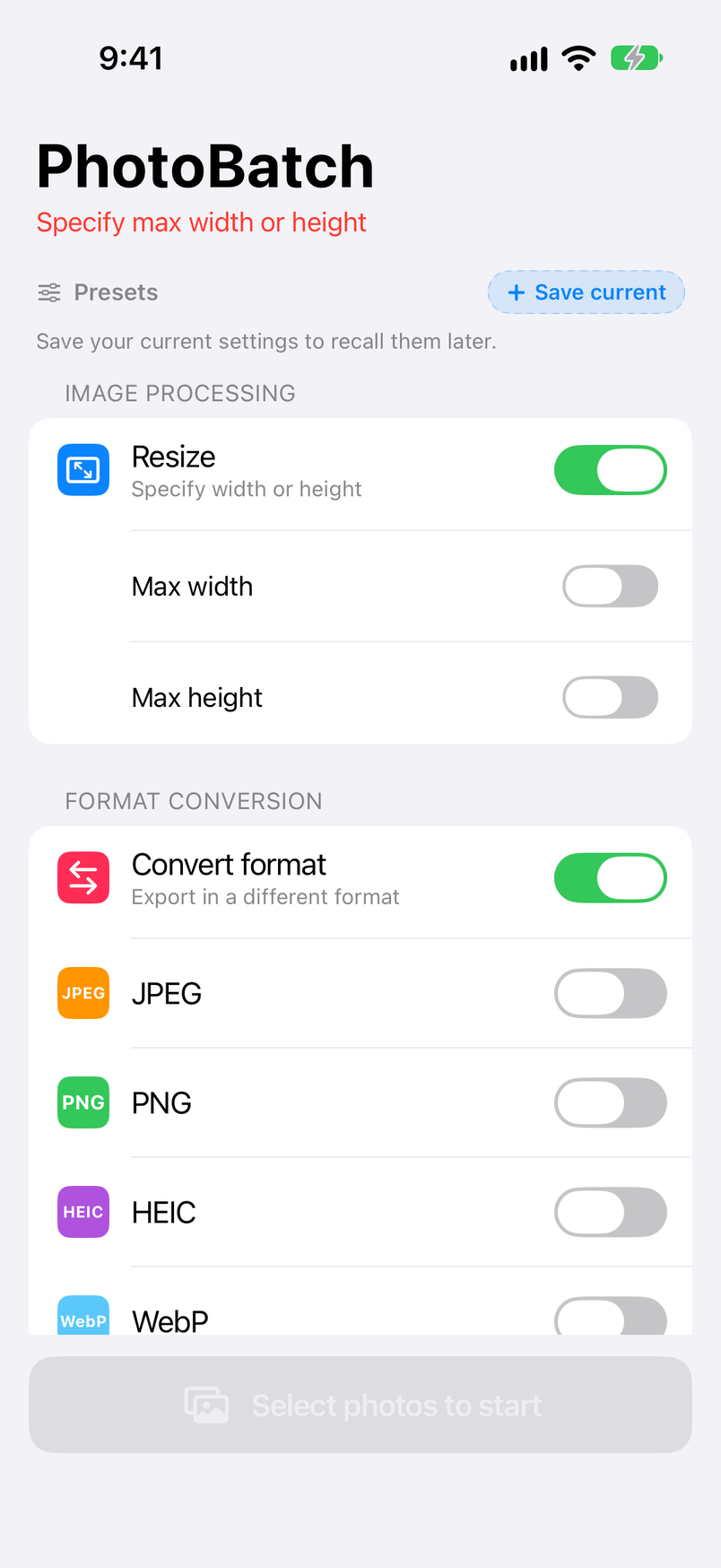
Under “Image processing” on the Home screen, turn on “Max width” or “Max height”, enter a value in pixels, and tap Done on the keyboard. Both are off when you first open the app, so the red line under the title reads “Specify max width or height” and you can't start yet. If you don't want to shrink the photos, turn off “Resize” (see Resize).
Choose the export formats
Under “Format conversion”, turn on the formats to export. If you turn on several, each photo is exported in each of them. To only shrink photos without changing their format, turn off “Convert format” (see Export Formats & Quality).
Pick your photos
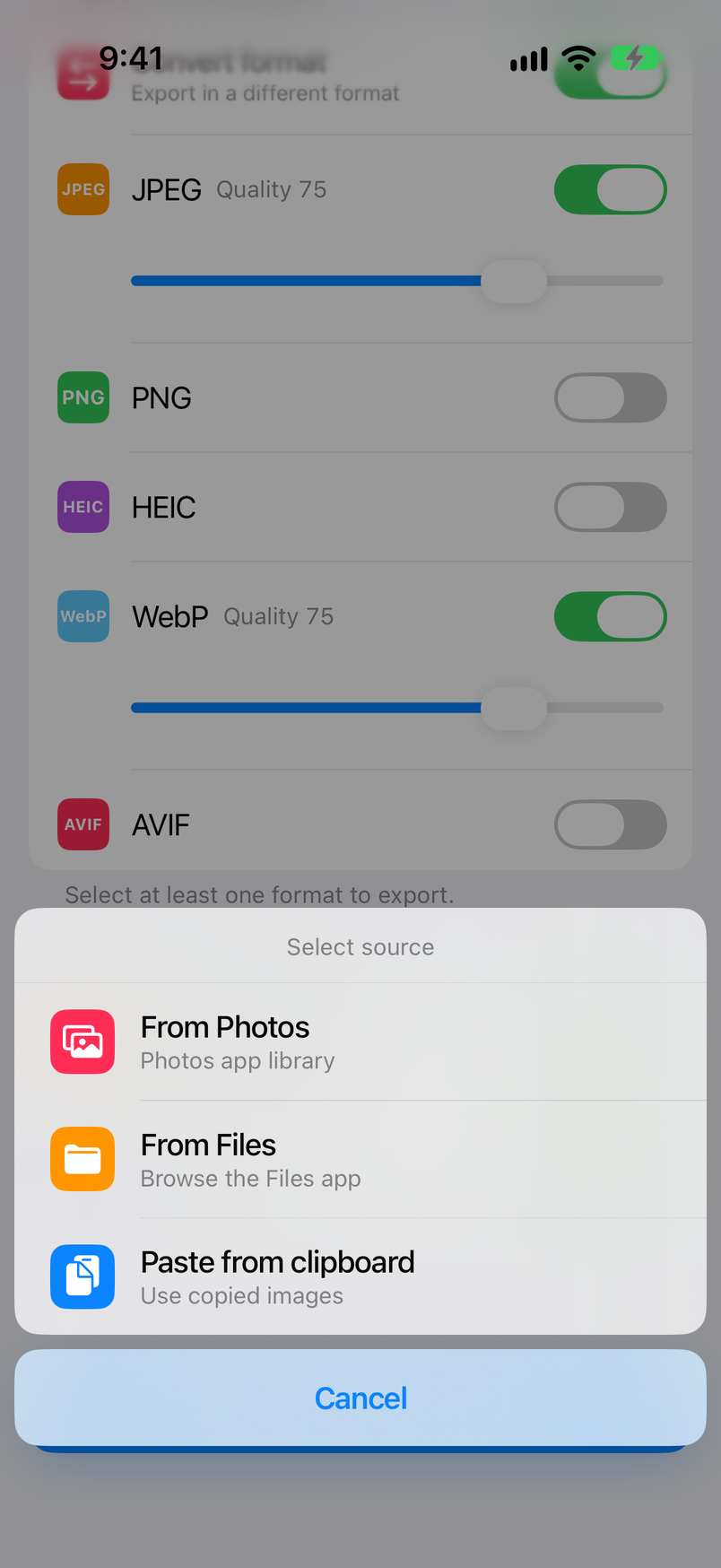
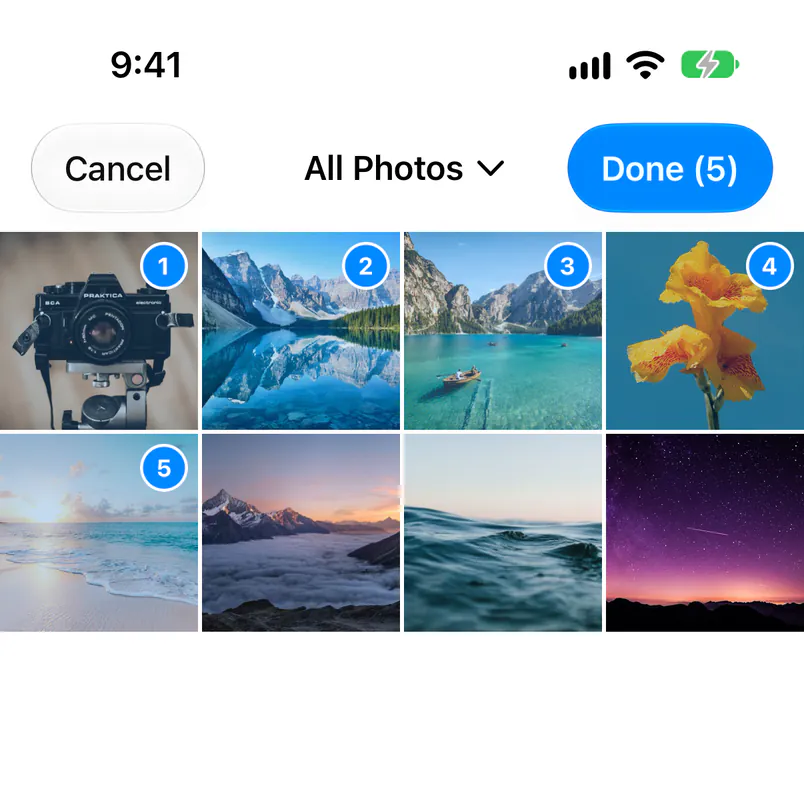
Tap “Select photos to start” and choose “From Photos”. Tap photos to select them (they're numbered in the order you pick them), then tap Done at the top right (see Importing Photos).
Wait for processing to finish
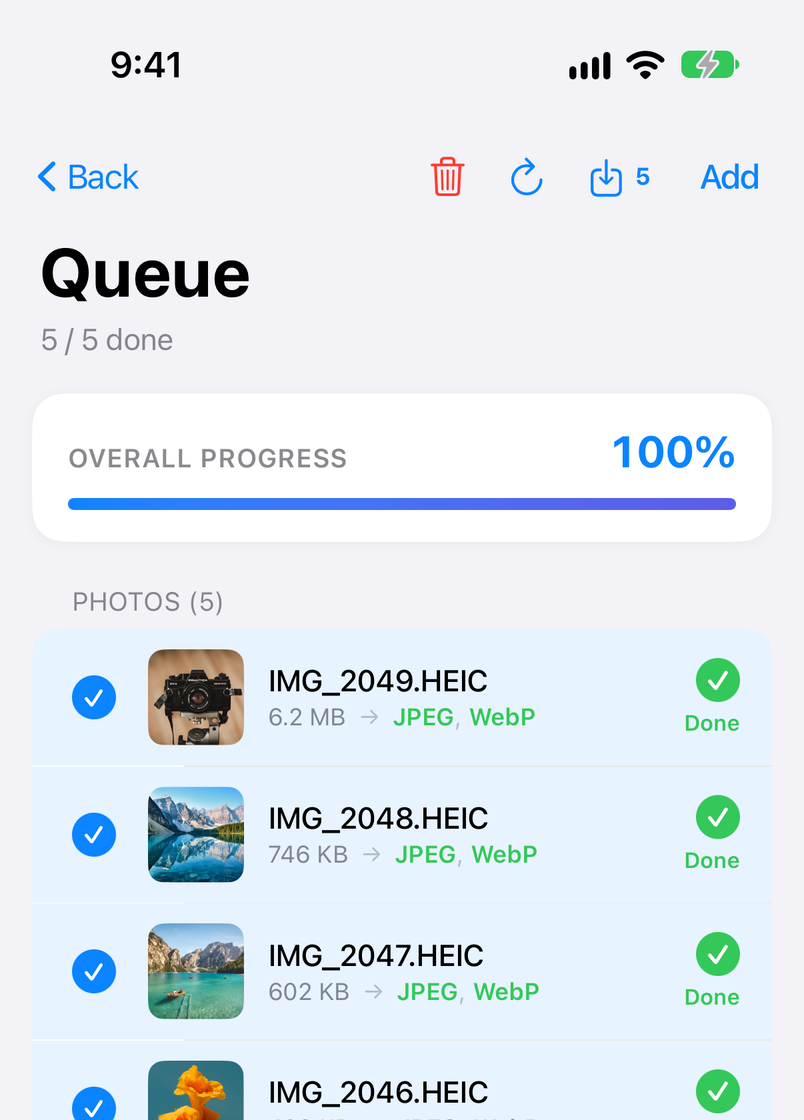
The app switches to the Queue, which shows the progress of each photo. It's finished when every photo shows Done (see The Queue).
Tap “Save to Photos”
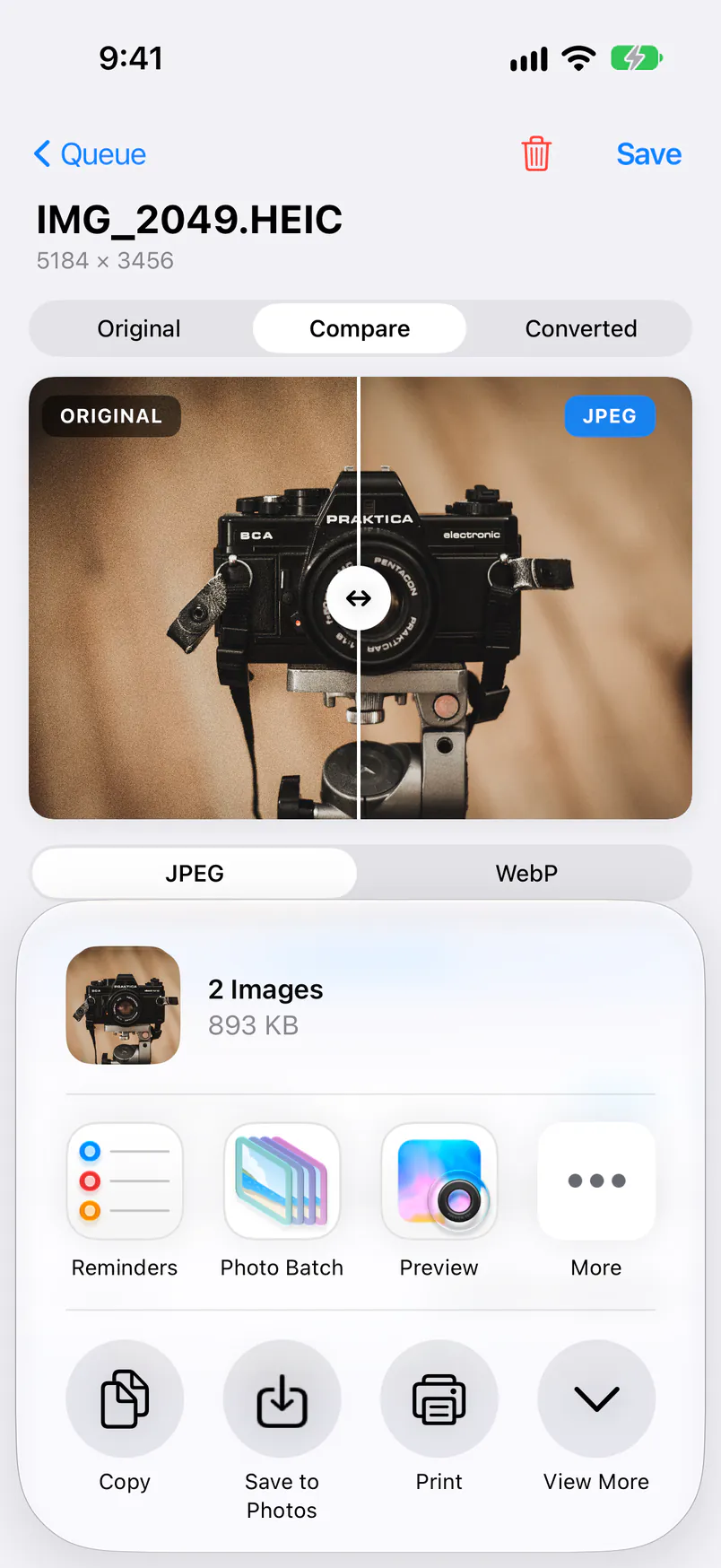
Tap the save button at the top right of the Queue (the one with a count), then tap “Save to Photos” in the share sheet. The images are saved to Photos with their original file names (see Saving & Exporting).
The Home Screen
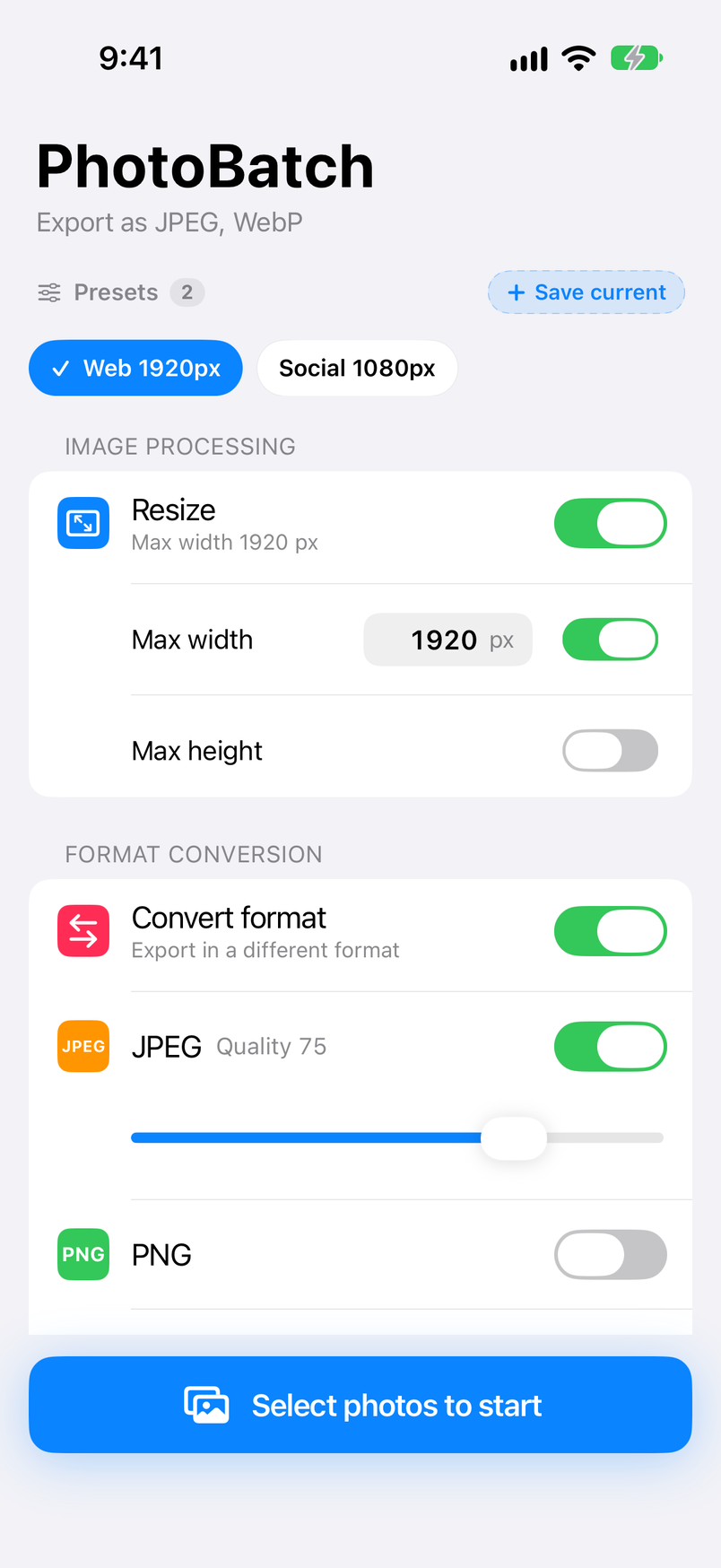
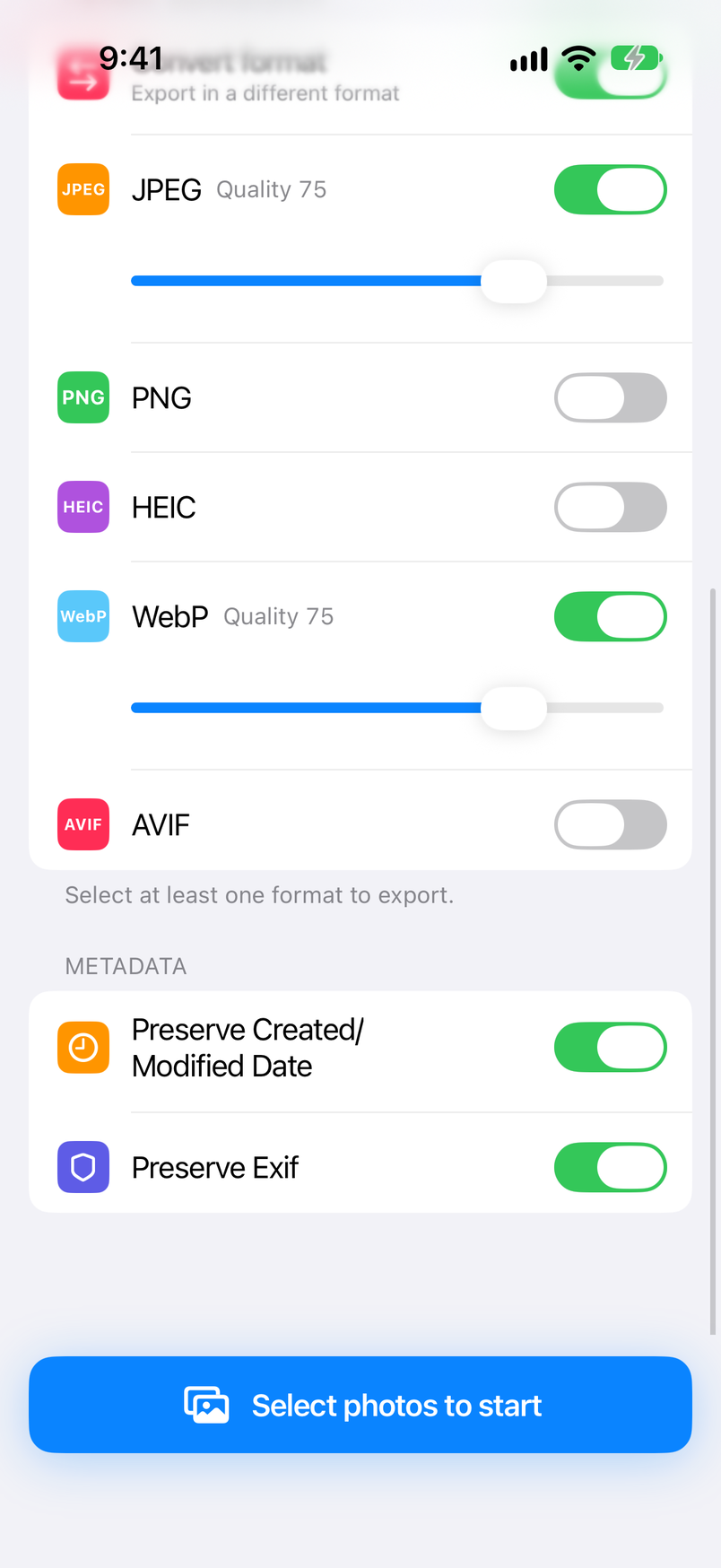
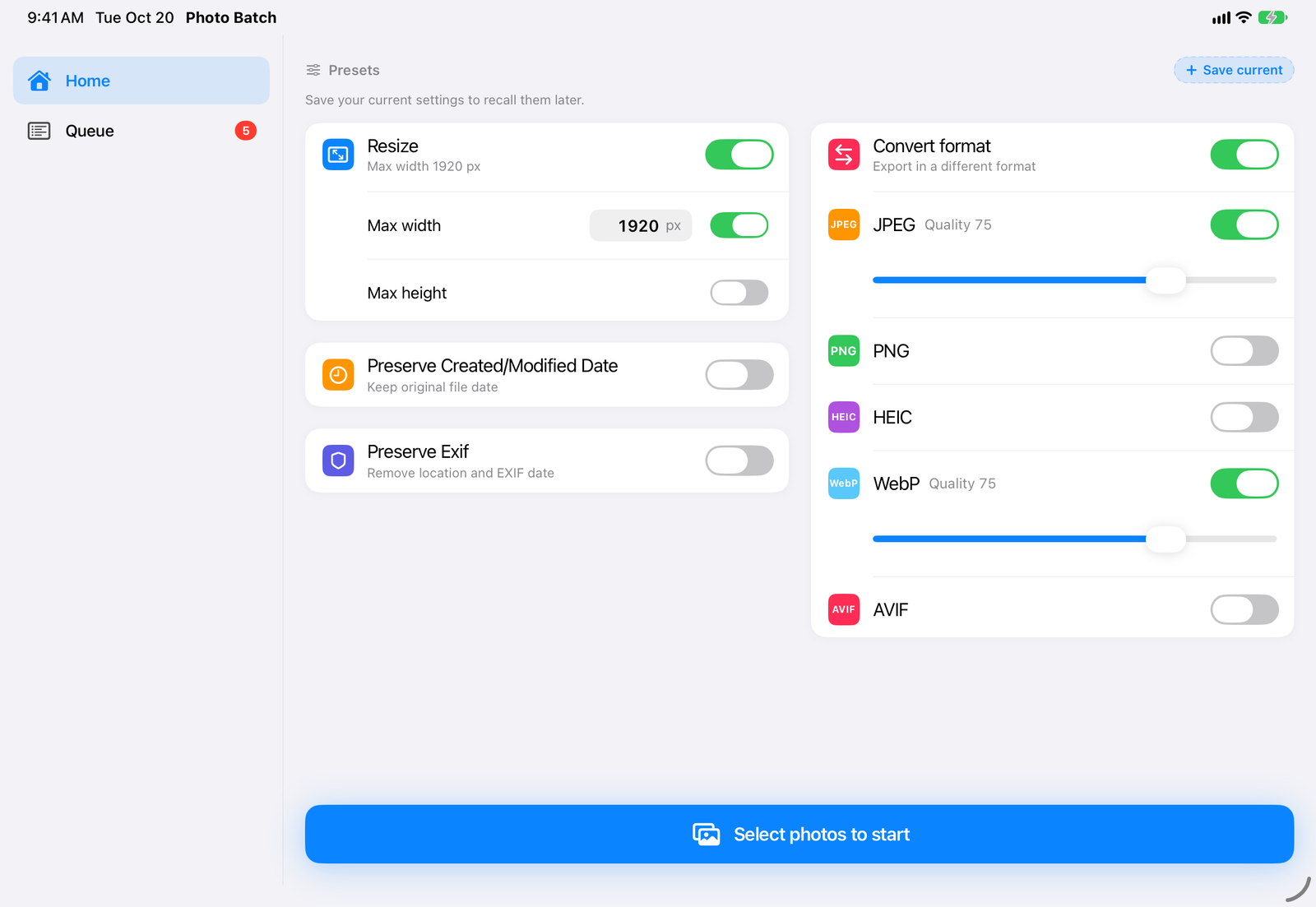
Home is the screen you see when you open the app. From top to bottom, it shows what will happen with the current settings, your presets, and the setting cards, with the “Select photos to start” button at the bottom.
| Button / display | What it does |
|---|---|
| Line under the title | Shows what the current settings will do (for example, “Export as JPEG, WebP” or “Resize only”). In red, it tells you why you can't start yet (for example, “Specify max width or height” or “Select at least one export format”). |
| Queue | Appears with a count while there are photos being processed or already processed. Tap it to open the Queue (see The Queue). |
| Presets | Your saved settings and the “Save current” button (Pro; see Presets). |
| Image processing, Format conversion, Metadata | The cards where you choose the size, the export formats and quality, and how EXIF and dates are handled (see Resize, Export Formats & Quality, and EXIF & Dates). |
| Select photos to start | Choose where to import from and start processing (see Importing Photos). |
| Ads and the Pro banner | Shown only in the free version (see Free & Pro). |
On iPad
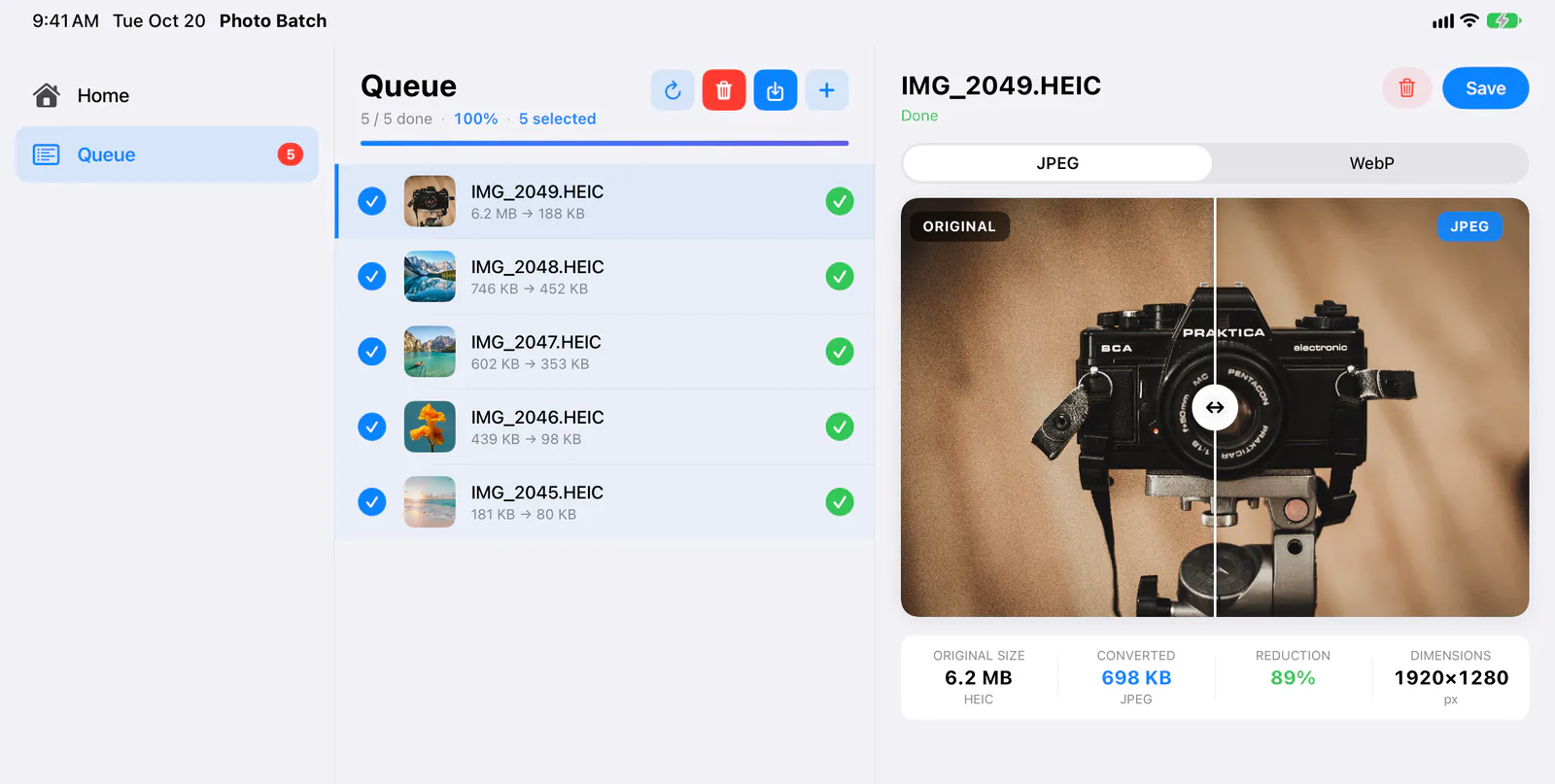
On iPad, switch between Home and Queue in the sidebar on the left (the free version also shows “Upgrade to Pro”). In landscape, the setting cards are arranged in two columns, and the Queue shows the photo you select in the list as a large preview on the right, together with the original size, the converted size, the reduction, and the dimensions. In portrait, the sidebar becomes a narrow strip of icons.
Resize (Max Width & Height)
Set the maximum size of the exported images under “Image processing” on the Home screen. Defaults are the values the app uses the first time you launch it.
| Setting | Default | Description |
|---|---|---|
| Resize | On |
When on, photos are shrunk to fit “Max width” and “Max height”. Turn it off to skip shrinking and only convert formats and handle metadata. The current limit is shown underneath (for example, “Max width 1920 px”). |
| Max width | Off / 500 |
Turn it on and enter the largest width, from 1 to 99999 px. Only photos wider than that are shrunk, keeping their aspect ratio. Tap Done on the keyboard when you've entered the value. |
| Max height | Off / 500 |
Turn it on and enter the largest height, from 1 to 99999 px. With both on, photos are shrunk to fit within both (for example, “Max 1920 × 1080 px”). |
📐 Shrinks only, never enlarges
Photos smaller than the limit are exported at their own size. Portrait and landscape photos can be mixed; none of them change aspect ratio.
🔄 Orientation applied to the pixels
The photo's orientation (the EXIF rotation tag) is applied to the pixels before export, so every app shows the image the way it was taken.
Export Formats & Quality
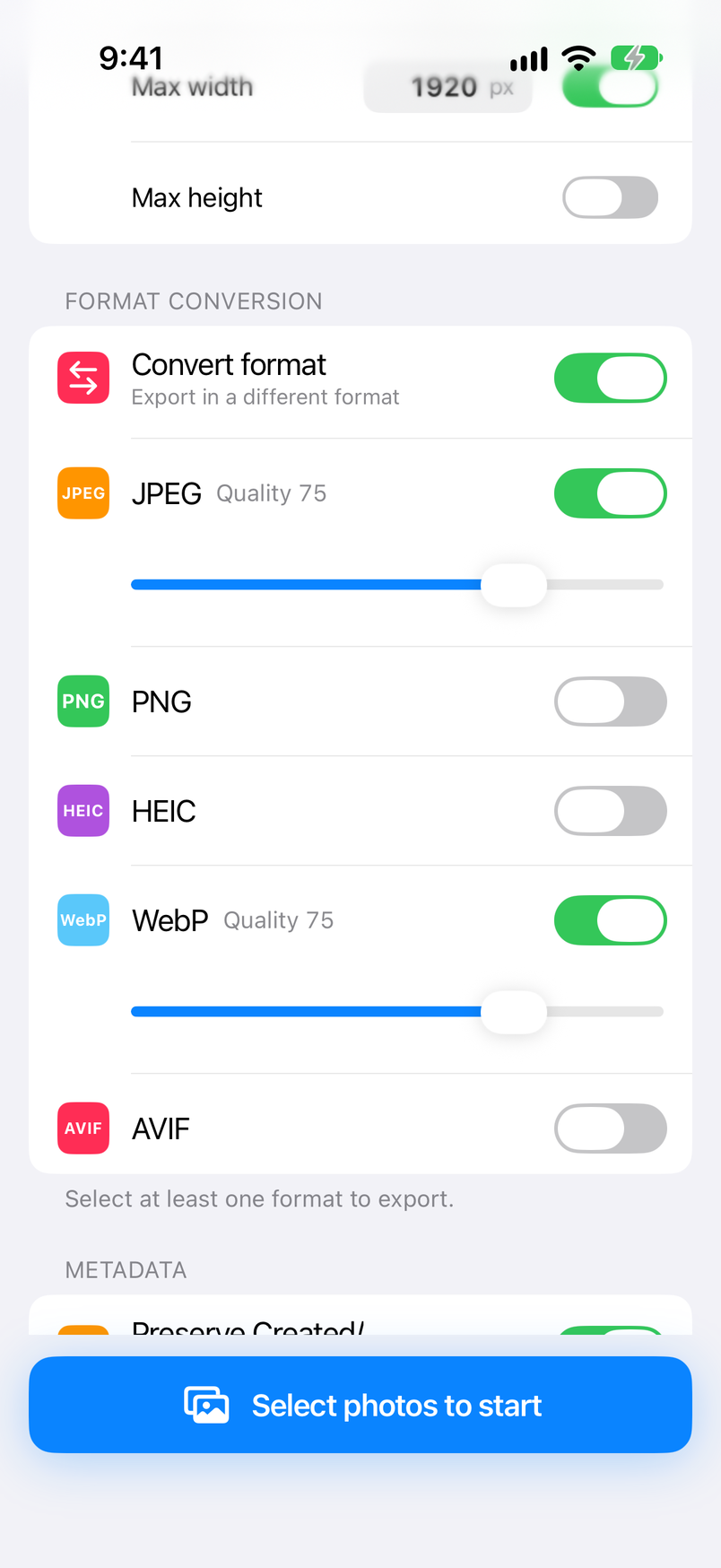
Turn on the formats to export under “Format conversion” on the Home screen. Turning a format on shows a quality slider below it. Defaults are the values the app uses the first time you launch it.
| Setting | Default | Description |
|---|---|---|
| Convert format | On |
When on, images are exported in the formats you turn on below. Turn it off to keep each image's format (see “Keeping the original format” below). |
| JPEG | Off / quality 75 |
Quality from 0 to 100. A format for photos that opens in every app and on every device. |
| PNG | Off |
A lossless format. Photos tend to become large files, so it suits screenshots and graphics. |
| HEIC | Off / quality 75 |
Quality from 0 to 100. The iPhone camera's standard format, smaller than JPEG. |
| WebP | Off / quality 75 |
Quality from 0 to 100. A format widely used on websites. |
| AVIF | Off / quality 75 |
Quality from 0 to 100. Usually even smaller than WebP; quality 100 exports losslessly. |
🎛️ Export several formats at once
With two or more formats on, each photo produces one image per format. For example, with JPEG and WebP on, five photos give you ten images.
🔁 Keeping the original format
With “Convert format” off, JPEG, PNG, HEIC, WebP, AVIF, GIF, and TIFF images are exported in the same format. Other formats (HEIF, BMP, RAW, and so on) become JPEG. Use this when you only want to shrink photos or remove EXIF.
🌈 HDR photos
HDR is kept only when HDR (HEIC of 10-bit or more recorded in PQ / HLG) is exported as HEIC. Every other combination is exported as SDR (8-bit).
EXIF & Dates
Under “Metadata” on the Home screen, choose whether the exported images keep their shooting data (EXIF), location, and capture date. Defaults are the values the app uses the first time you launch it.
| Setting | Default | Description |
|---|---|---|
| Preserve Created/Modified Date (Pro) | Off |
Writes the original photo's date to the exported image's created and modified dates and to its EXIF capture date. The capture date is kept even when “Preserve Exif” is off, so images saved to Photos sit at the same date as the originals. In the free version, turning it on opens the Pro purchase screen. |
| Preserve Exif | Off |
When off, all metadata, including EXIF and location (GPS), is removed (the color profile is kept). When on, the camera model, shooting settings, location, and so on are kept. The orientation tag is rewritten because the rotation is already applied to the pixels. |
For “Preserve Created/Modified Date”, the capture date in the original's EXIF always comes first. If there's no date in the EXIF, the capture date in Photos is used for photos imported from Photos, and the file's dates are used for images imported from Files.
Presets (Pro)
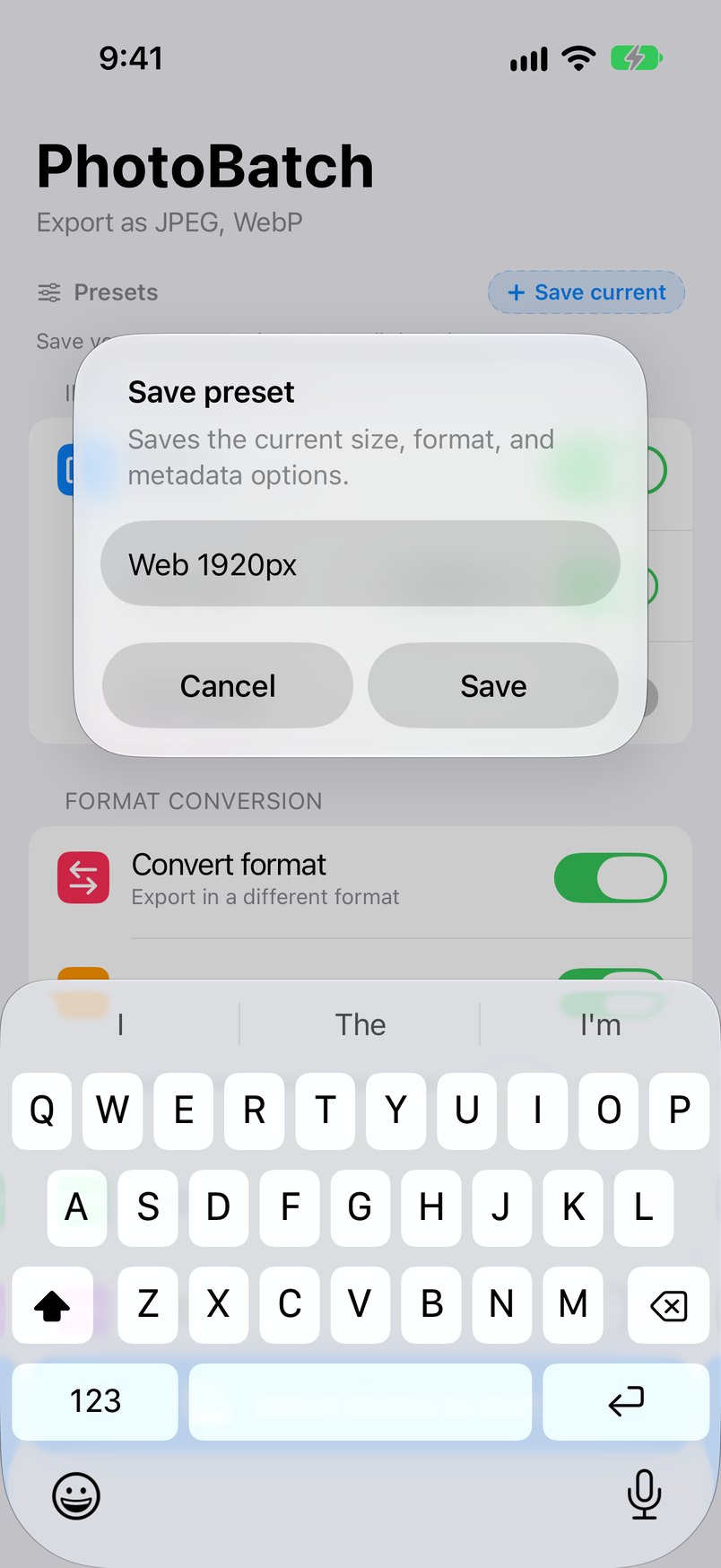
Save combinations of size, format, quality, and metadata settings under a name, and recall them with one tap from the presets on the Home screen. Imported photos aren't saved in presets.
Choose your settings and tap “Save current”
Set things up on the Home screen and tap “Save current” next to Presets.
Name and save it
In “Save preset”, enter a name (for example, “Web 1920px”) and tap Save. If you leave the name empty, it's saved as “Preset 1” and so on.
Tap a preset to apply it
Tap a preset in the list to switch to its settings. The preset that matches the current settings shows a checkmark.
| Menu item | What it does |
|---|---|
| Apply | Switches to the preset's settings (the same as tapping it). |
| Update with current | Replaces the preset's contents with the current Home settings. |
| Rename | Gives the preset a new name in “Rename preset”. |
| Delete | Deletes the preset after you confirm. Your current settings stay as they are. |
This menu appears when you touch and hold a preset. In the free version, “Unlock with Pro” is shown instead of presets.
Importing Photos
Tap “Select photos to start” on the Home screen, or Add in the Queue, to open “Select source”. When you finish picking, the app switches to the Queue and starts processing.
| How to add | What to do |
|---|---|
| From Photos | Pick from your Photos library. You can pick up to 10 photos at a time (100 with Pro). |
| From Files | Pick images in the Files app, including iCloud Drive and other apps' folders. There's no limit on the number of images. |
| Paste from clipboard (Pro) | Imports images you copied in another app. If the clipboard has no images, the app shows “No images on clipboard”. |
| Share menu (Pro) | In the share menu of Photos or another app, choose “Photo Batch” to send up to 100 images. Tap Open in “Open in Photo Batch”, and Photo Batch opens and adds them to the Queue. In the free version, images sent from the share menu aren't imported. |
Picking photos
✔ Tap or swipe to select
Tap a photo to select it; selected photos are numbered in the order you pick them. Tap again to deselect. Swipe sideways to select (or deselect) several photos in one stroke. Swipe down the rightmost column to select whole rows, or up to deselect them; the grid scrolls automatically at the edge of the screen.
📁 Switch albums
Tap the title at the top (“All Photos”) to open “Albums”, where you can choose from “Media Types” (Favorites, Screenshots, Portrait, and more) or “My Albums”. Your selection is kept when you switch albums.
☁️ iCloud and edited photos
Photos stored only in iCloud Photos are downloaded before import. Photos you edited in Photos are imported as edited. Live Photos are imported as still images.
The Queue
The list of imported photos and their progress. “Overall progress” at the top shows the share of photos that are finished. Processing continues when you go back to Home, and you can return any time with Queue on the Home screen.
| Button / display | What it does |
|---|---|
| Back | Returns to Home. Processing continues. |
| Trash | Removes the selected photos from the list. With nothing selected, it clears the whole list and returns to Home (the original files aren't deleted). |
| ↻ (Redo) | Processes the selected photos again with the current Home settings. Use it to remake images after changing settings. |
| Save (with a count) | Exports the converted images of the selected photos through the share sheet. Finished photos are selected automatically, so tapping it right away exports everything (see Saving & Exporting). |
| Add | Imports more photos. |
| Photo rows | Tap the circle on the left to select or deselect. Under the file name, the row shows the original file size and either the export formats or the converted size. Done appears on the right when it's finished, or Failed if nothing could be exported. Tap a finished row to open its result (see Reviewing & Comparing). |
Reviewing & Comparing
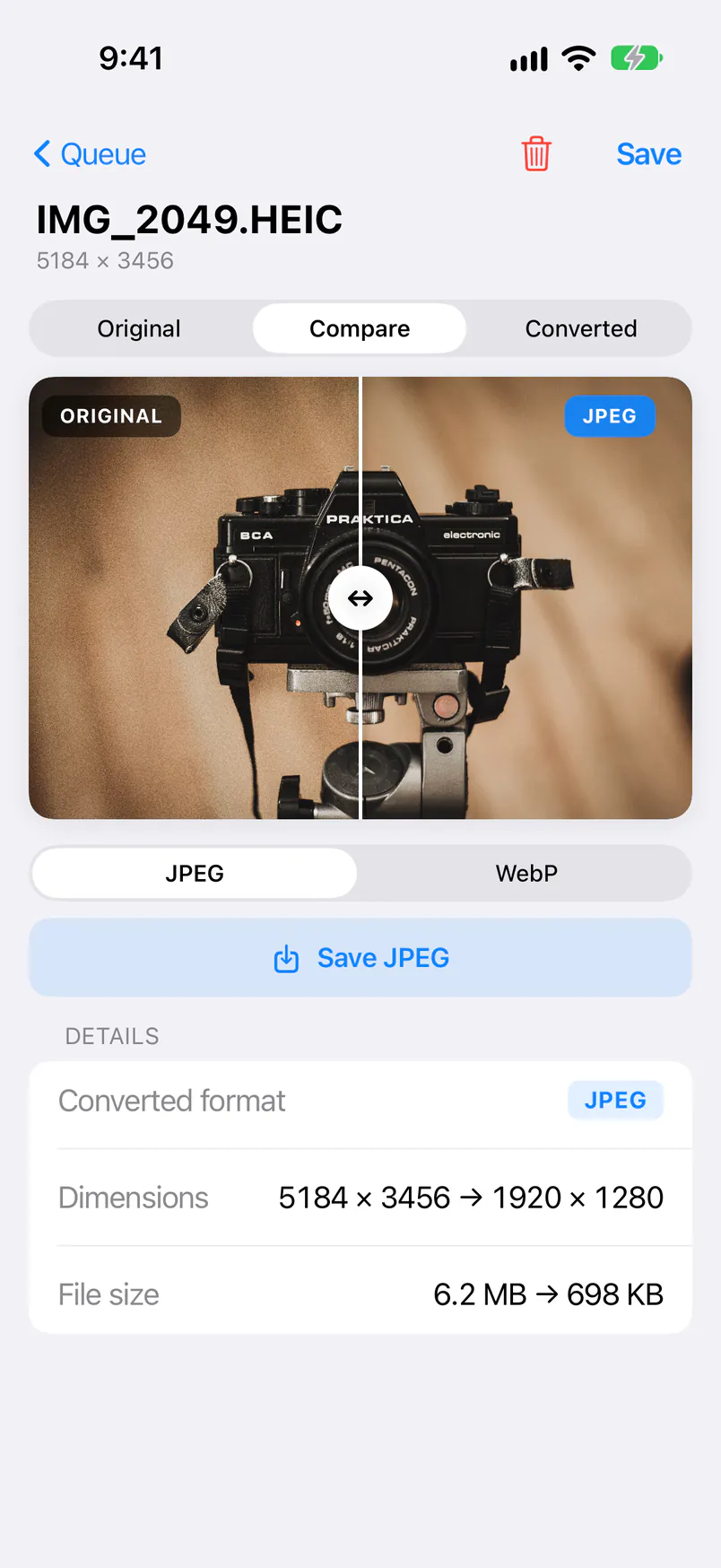
Tap a finished photo in the Queue to open its result. The original dimensions are shown under the file name, and you can compare the converted image with the original.
↔️ Original, Compare, Converted
Choose Original, Compare, or Converted at the top. In Compare, the original is on the left and the converted image on the right; drag the divider in the middle to compare.
🔎 Zoom in to check
Pinch to zoom up to 20×. Double-tap to switch between 2× and the original size. Animated images play the original and the converted version in sync.
📊 Details
Shows “Converted format”, “Dimensions”, and “File size”, with the original and converted values side by side (for example, “5184 × 3456 → 1920 × 1280”). If you exported several formats, use the format switcher to choose which image to show.
💾 Save just this photo
Save at the top right exports every format of this photo. Buttons such as “Save JPEG” export only the format you're viewing. The trash button at the top right removes this photo from the list.
Saving & Exporting
Converted images are exported through the share sheet that opens from the save button. “Save to Photos” saves them to Photos with their original file names, “Save to Files” saves them to any folder, and you can also send them with AirDrop or to other apps.
💾 “Save to Photos”
An action Photo Batch adds to the share sheet. An image made from IMG_1234.HEIC is saved as IMG_1234.jpg: the original file name with the new extension. The first time, you're asked to allow adding photos.
⚠️ If adding photos isn't allowed
Without permission to add photos, the standard “Save Image” appears instead of “Save to Photos”. Saving still works, but Photos assigns a new number (IMG_5678 and so on). To keep the original names, allow adding photos in Settings.
📁 “Save to Files”
Saves to any folder in the Files app, named with the original file name and the new extension. Handy for WebP or AVIF images for a website, or for sending images to a computer.
Free & Pro
Photo Batch is free to use. Pro, a one-time in-app purchase, removes the ads, raises the number of photos you can import at a time, and adds several features.
| Feature | Free version | After upgrading (Pro) |
|---|---|---|
| Resizing, converting to five formats, removing or keeping EXIF, saving | ✓ | ✓ |
| Photos imported at a time from Photos | 10 | 100 |
| Importing from Files | ✓ | ✓ |
| Ads | Shown | None |
| Presets | — | ✓ |
| Preserve Created/Modified Date | — | ✓ |
| Paste from clipboard | — | ✓ |
| Importing from the share menu | — | ✓ |
💳 Getting Pro
Tap the Pro banner on the Home screen, or a locked feature such as presets, to open the Pro purchase screen. On iPad, you can also use “Upgrade to Pro” in the sidebar. It's a one-time purchase with no extra fees.
🔄 Restoring your purchase
After changing phones, or to use Pro on another iPhone or iPad, tap “Restore purchase” at the bottom of the Pro purchase screen. If you bought Pro with the same Apple Account, it becomes available.
Supported Formats & Requirements
The images you can import, the formats you can export, and the system requirements.
| Item | Details |
|---|---|
| Images you can import | JPEG, PNG, HEIC / HEIF, WebP, AVIF, GIF, TIFF, and other images iPhone and iPad can display, including animated images (animated GIF, PNG, WebP, and AVIF). Files also lets you pick PDFs, but they can't be converted. |
| Formats you can export | JPEG, PNG, HEIC, WebP, and AVIF. With “Convert format” off, GIF and TIFF are also exported in their own format. |
| Requirements | iPhone with iOS 16 or later, iPad with iPadOS 16 or later |
| Languages | English, Japanese, Korean, Chinese (Simplified and Traditional) |
| Where processing happens | Everything is processed on your iPhone or iPad; images are never sent to an external server. |
FAQ
Answers to common questions about converting images and the app's settings.
Q. Could my original images be overwritten or deleted?
Photo Batch works on copies of the photos you import, so the originals in Photos or Files stay as they are. Removing photos from the Queue doesn't delete the original files. Converted images are exported as new files when you save them.
Q. Can a converted file end up larger than the original?
Yes, for example when a HEIC photo is converted to JPEG or PNG, or exported at high quality without shrinking. Check the file size under Details on the result screen, then lower the quality or shrink the photos with Max width or Max height and process them again (↻ in the Queue remakes them with the current settings).
Q. Why can't I tap “Select photos to start”?
It's unavailable while a setting is missing, and the red line under the title on the Home screen tells you why. For “Specify max width or height”, turn on “Max width” or “Max height”, or turn off “Resize” if you don't want to shrink. For “Select at least one export format”, turn on at least one format, or turn off “Convert format” to keep the formats.
Q. Are EXIF and location data kept?
With the default, “Preserve Exif” off, EXIF and location data aren't kept in converted images. To keep them, turn on “Preserve Exif” under Metadata on the Home screen. With “Preserve Created/Modified Date” (Pro) on, the capture date is kept even when “Preserve Exif” is off (see EXIF & Dates).
Q. What happens when I convert HDR photos?
HDR (HEIC of 10-bit or more recorded in PQ / HLG) stays HDR when exported as HEIC. Converting to JPEG, PNG, WebP, or AVIF exports SDR (8-bit) (see Export Formats & Quality).
Q. What are the converted images named?
They keep the original file name with a new extension (IMG_1234.HEIC → IMG_1234.jpg). Saved with “Save to Photos” in the share sheet, they keep this name in Photos. Saved with the standard “Save Image”, Photos assigns a new number (see Saving & Exporting).
Q. Why do images I saved to Photos show the date I saved them?
Photos sorts images by the capture date in their EXIF. With both “Preserve Exif” and “Preserve Created/Modified Date” off, no capture date is kept, so the images appear as photos from the day you saved them. To place them at the same date as the originals, turn on “Preserve Created/Modified Date” (Pro) or “Preserve Exif” before processing.
Q. Why can't I find my converted images?
Converted images are kept in the app only until you save them, and they're removed the next time Photo Batch starts. When processing is done, save them with the save button and “Save to Photos” or “Save to Files”.
Q. Why aren't photos I sent from the share menu imported?
Importing from the share menu is a Pro feature. In the free version, images sent from the share menu aren't added to the Queue; open Photo Batch and import them with “From Photos” or “From Files” instead.
Q. How do I reset all settings to their defaults?
There's no button to reset settings. Change the items on the Home screen back by hand, or save the settings you use often as presets (Pro) and switch between them. Deleting and reinstalling the app returns every setting, including presets, to the state of the first launch (Pro comes back with “Restore purchase”).