Image Compare. User Guide
Image Compare. lets you pick two photos on your iPhone or iPad and compare them four ways: side by side, with a slider, as an overlay, and as a difference image. See at a glance what changed between a before and an after, what a retouch touched, or how something progressed over time. Images stay on your device and are never uploaded.
Key Features of Image Compare.
Pick the two images at the top of the screen and switch between the ways to compare them with the tabs at the bottom. There is no settings screen, and the two images you pick are shared by every tab.
Two images side by side
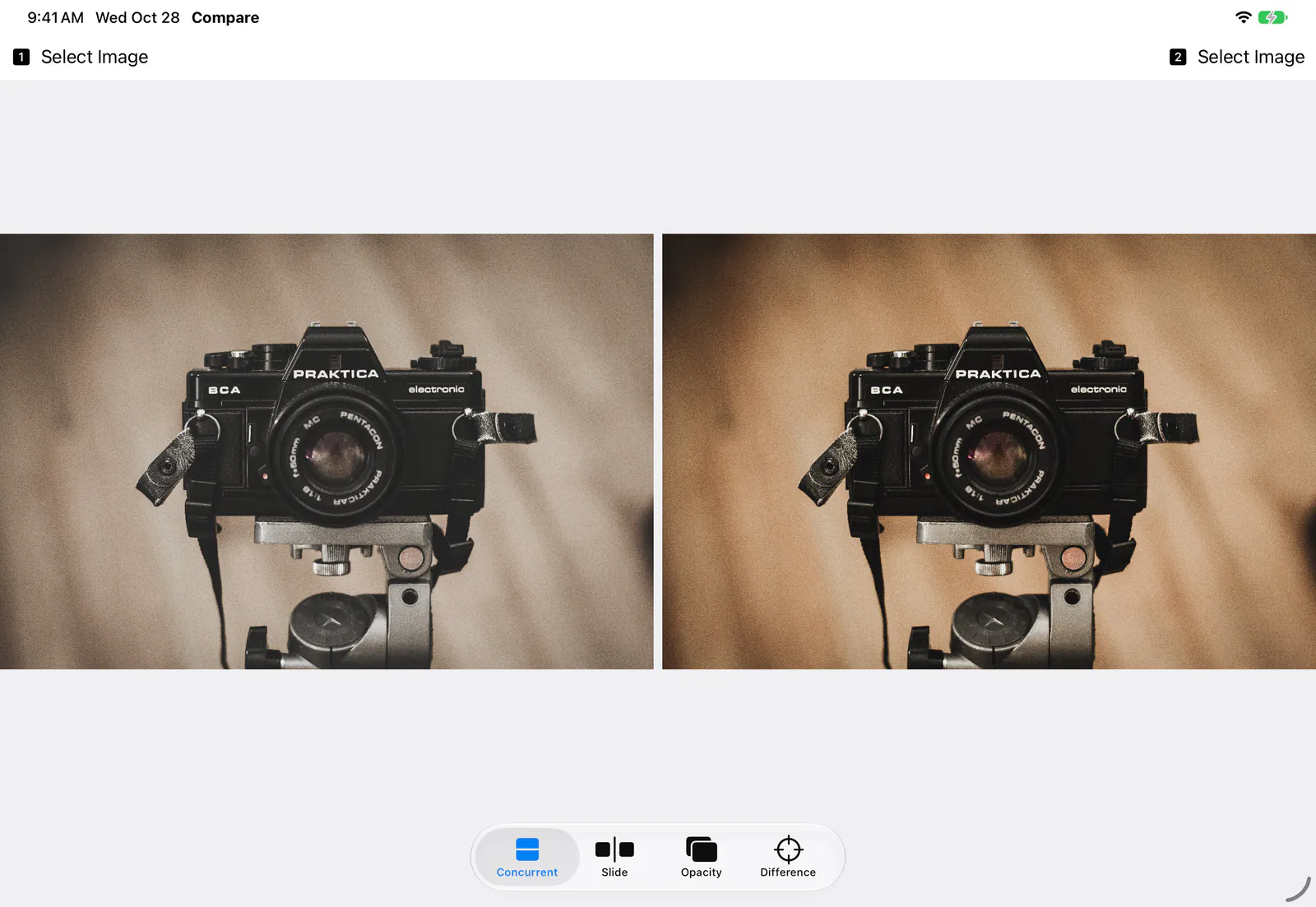
Shows both images at once. The app picks the arrangement (one above the other, or side by side) that shows them largest for their shape.
Move the divider to compare
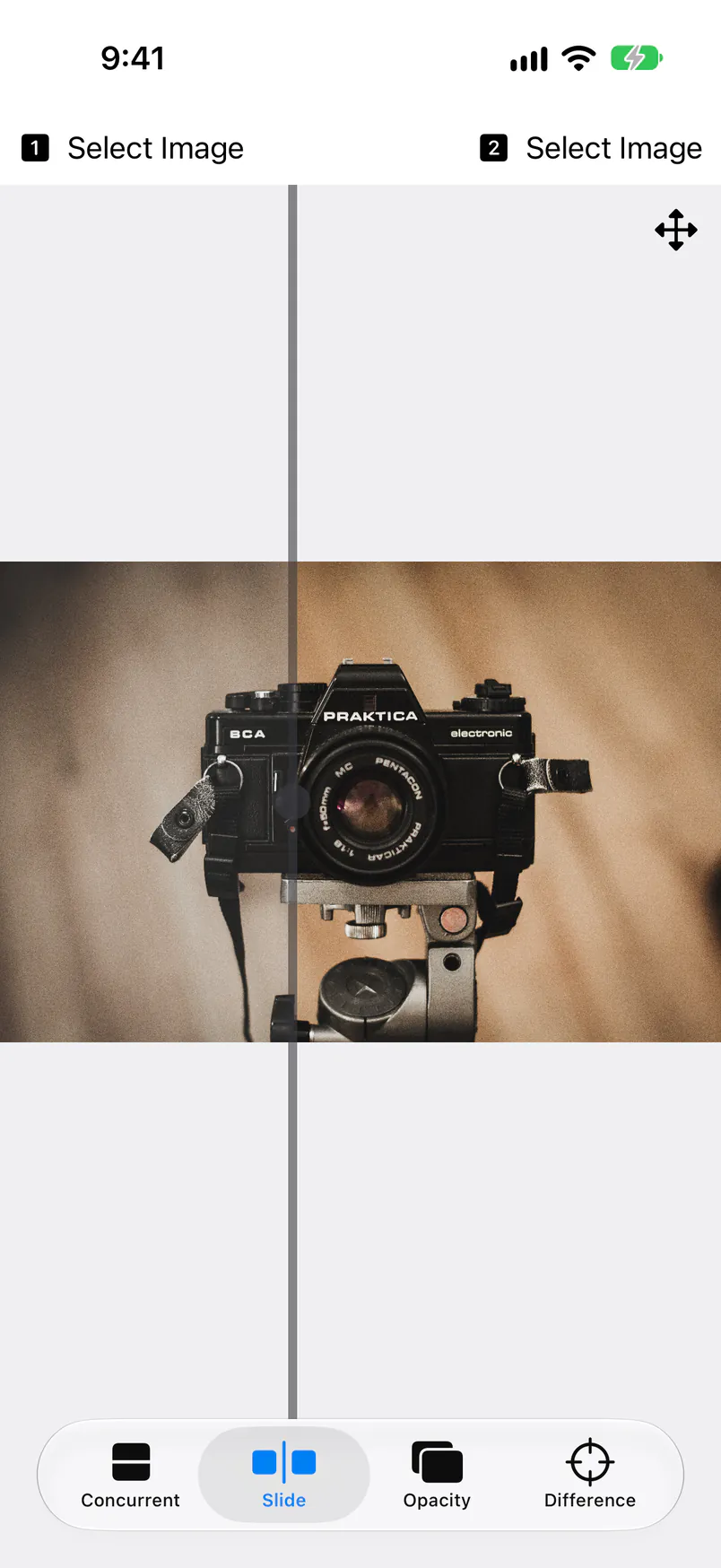
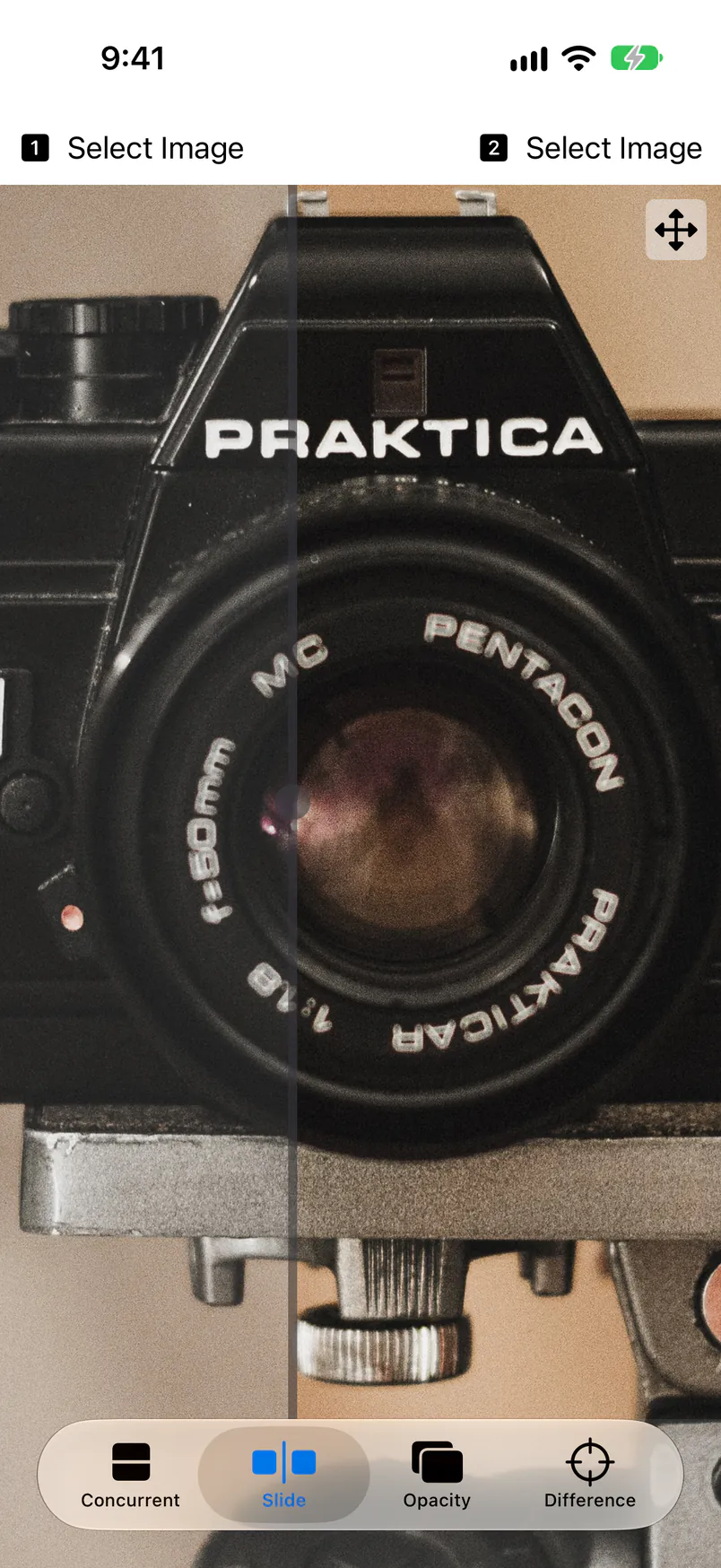
Stacks the two images and shows image 1 to the left of a divider and image 2 to the right. Drag the divider to switch between the before and after at the same spot.
See one through the other
Lays image 2 over image 1, partly transparent. Change the opacity with the slider and shifts and small changes stand out.
Isolate what changed
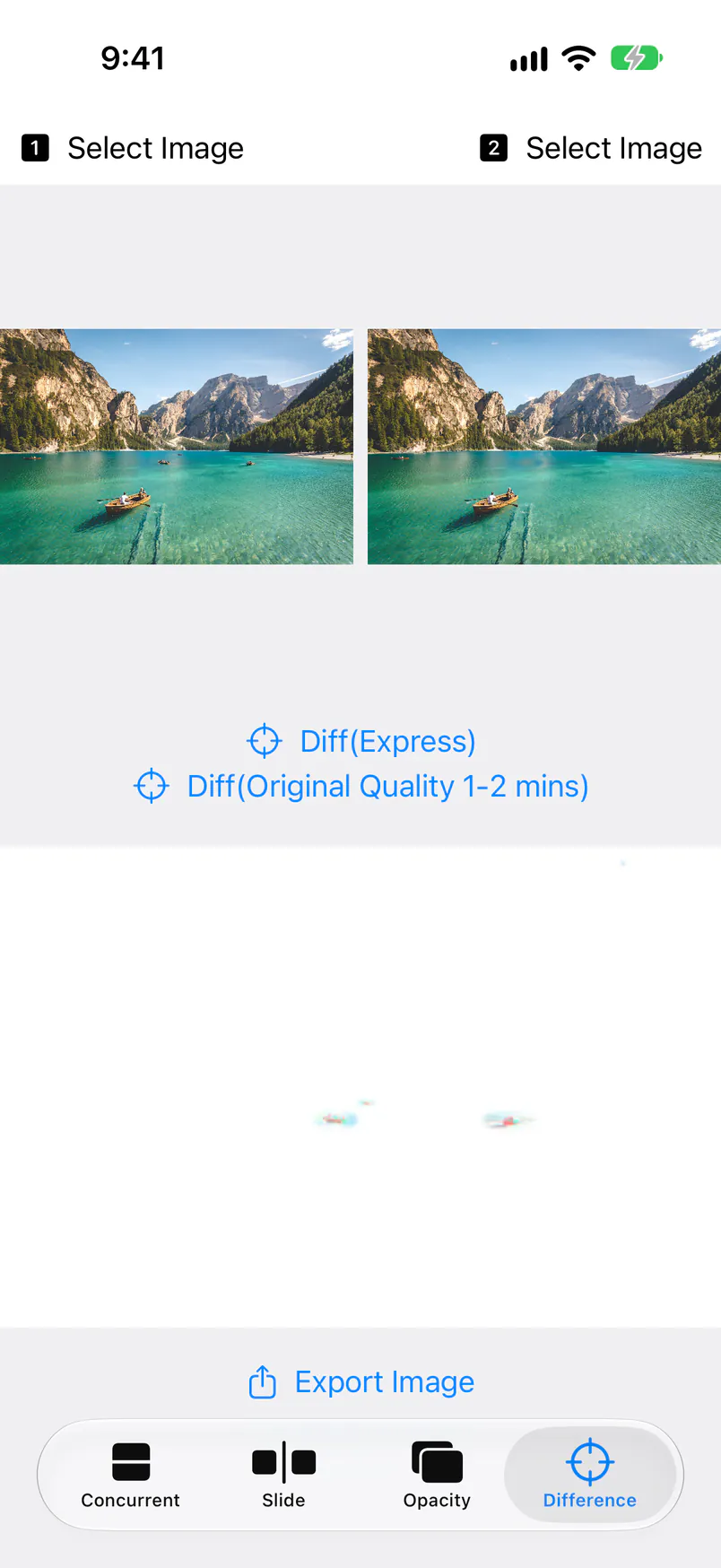
Calculates the difference pixel by pixel and makes a difference image where matching areas are white and changes are colored. It finds changes your eyes miss, and you can save it to Photos.
Line the two images up
When two photos were taken from slightly different spots, drag, pinch, and rotate image 2 with two fingers to lay it exactly over image 1 before comparing.
Images stay on your device
The app only loads the photos you pick to show and calculate them. Nothing is sent to a server, and your original photos are never changed.
Quick Start (Basic Steps)
Pick two images with Select Image at the top, then choose how to compare them with the tabs at the bottom. Making the before photo image 1 and the after photo image 2 keeps things easy to follow.
Pick image 1
Tap “1 Select Image” at the top left to open your photo library. Tap the photo you want to compare; the picker closes and the image appears (see Selecting Images).
Pick image 2
Tap “2 Select Image” at the top right and pick the other photo.
Choose how to compare
Switch between Concurrent (side by side), Slide (slider), Opacity (overlay), and Difference with the tabs at the bottom. The two images you picked carry over to every tab.
Zoom in to check details
In Slide and Opacity, pinch to zoom and drag to move around. Double-tap to go back to the full view (see Zooming and moving).
Save the changes as an image
In Difference, tap “Diff(Express)” to make a difference image. Tap Export Image and choose Save Image to save it to Photos (see Difference and Saving the Difference Image).
The Screen
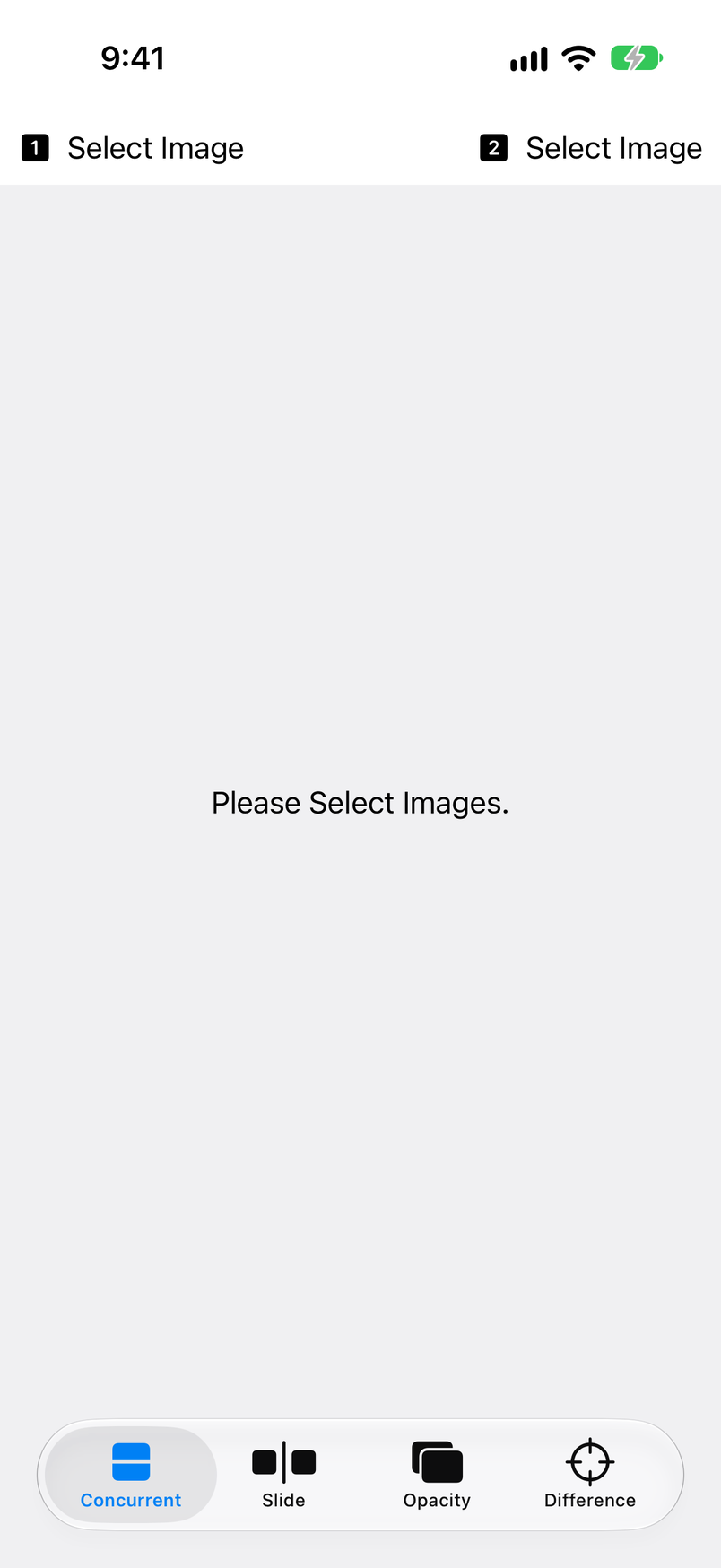
The app has a single screen: buttons to pick images at the top, the images being compared in the middle, and tabs for the ways to compare at the bottom.
| Button / display | What it does |
|---|---|
| 1 Select Image | Picks image 1. Tap it again to pick a different image (see Selecting Images). |
| 2 Select Image | Picks image 2. Image 2 is the one you move with position adjustment. |
| Please Select Images. | Shown until you pick images. |
| Position adjustment button | The button with arrows pointing four ways at the top right of Slide and Opacity. Tap it to turn on position adjustment; it turns blue (see Position Adjustment). |
| Concurrent | Shows the two images side by side (see Side by Side). |
| Slide | Stacks the images and compares them on either side of a divider (see Slider). |
| Opacity | Lays a partly transparent image 2 over image 1 (see Overlay). |
| Difference | Makes a difference image of the two (see Difference). |
Touch gestures
Gestures on the comparison area. What they do depends on the tab.
| Gesture | What it does |
|---|---|
| Tap | In Concurrent and Difference, picks a different image for the one you tapped. In Slide and Opacity, switches between showing only image 2 and only image 1. |
| Double-tap | Resets zoom, position, and position adjustment (in Slide, in Opacity, and on the difference image in Difference). |
| Pinch | Zooms in and out (in Slide, in Opacity, and on the difference image in Difference). With position adjustment on, scales image 2 only. |
| Drag | Moves the view around. In Slide, dragging the divider line moves the divider. With position adjustment on, moves image 2 only, slowly. |
| Two-finger rotate | Rotates image 2 while position adjustment is on. |
On iPad
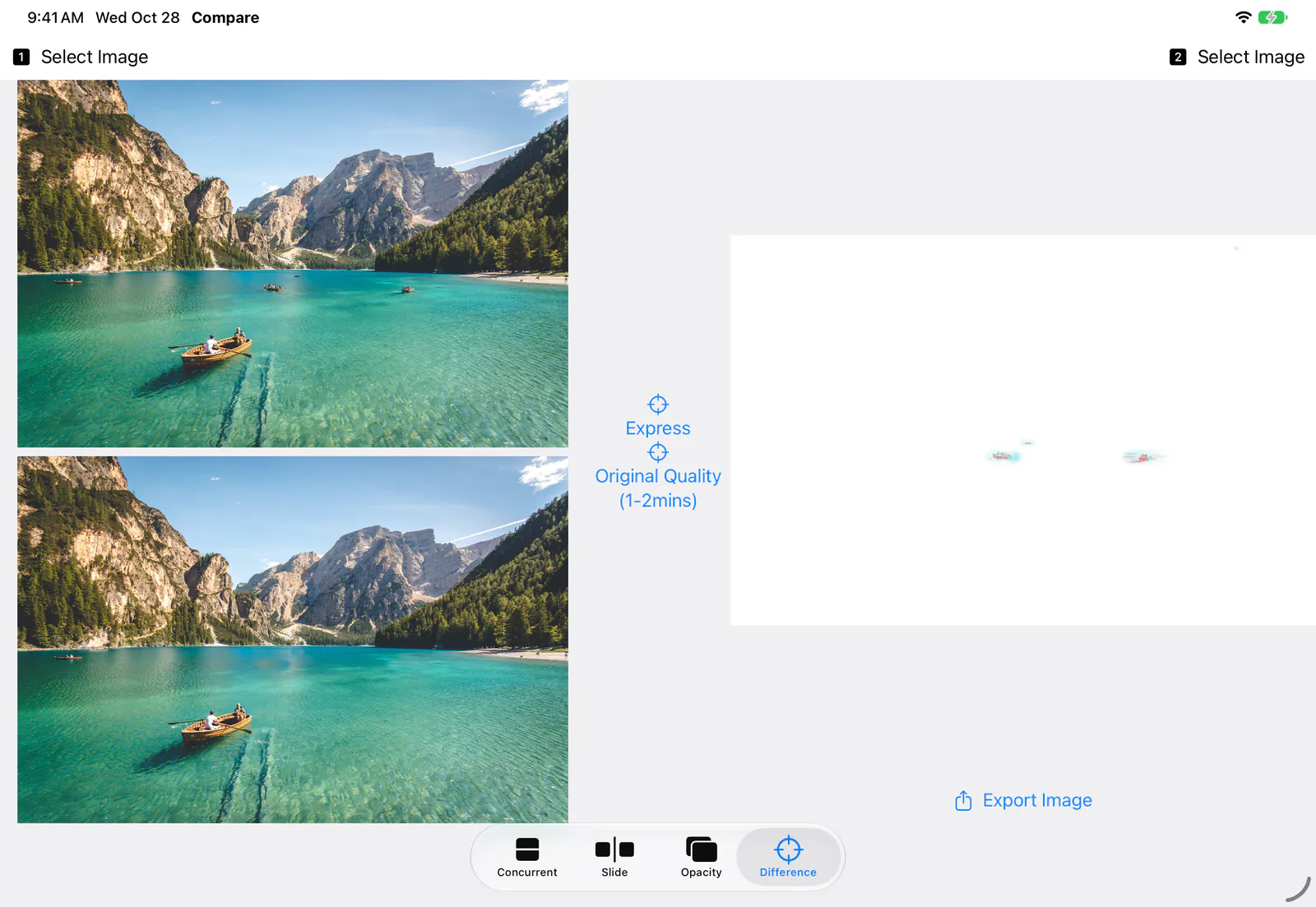
The iPad has the same screen. In landscape there is more room, so Concurrent shows even wide photos side by side. In landscape, Difference shows the two images on the left, the buttons next to them, and the difference image on the right (see Difference).
Selecting Images
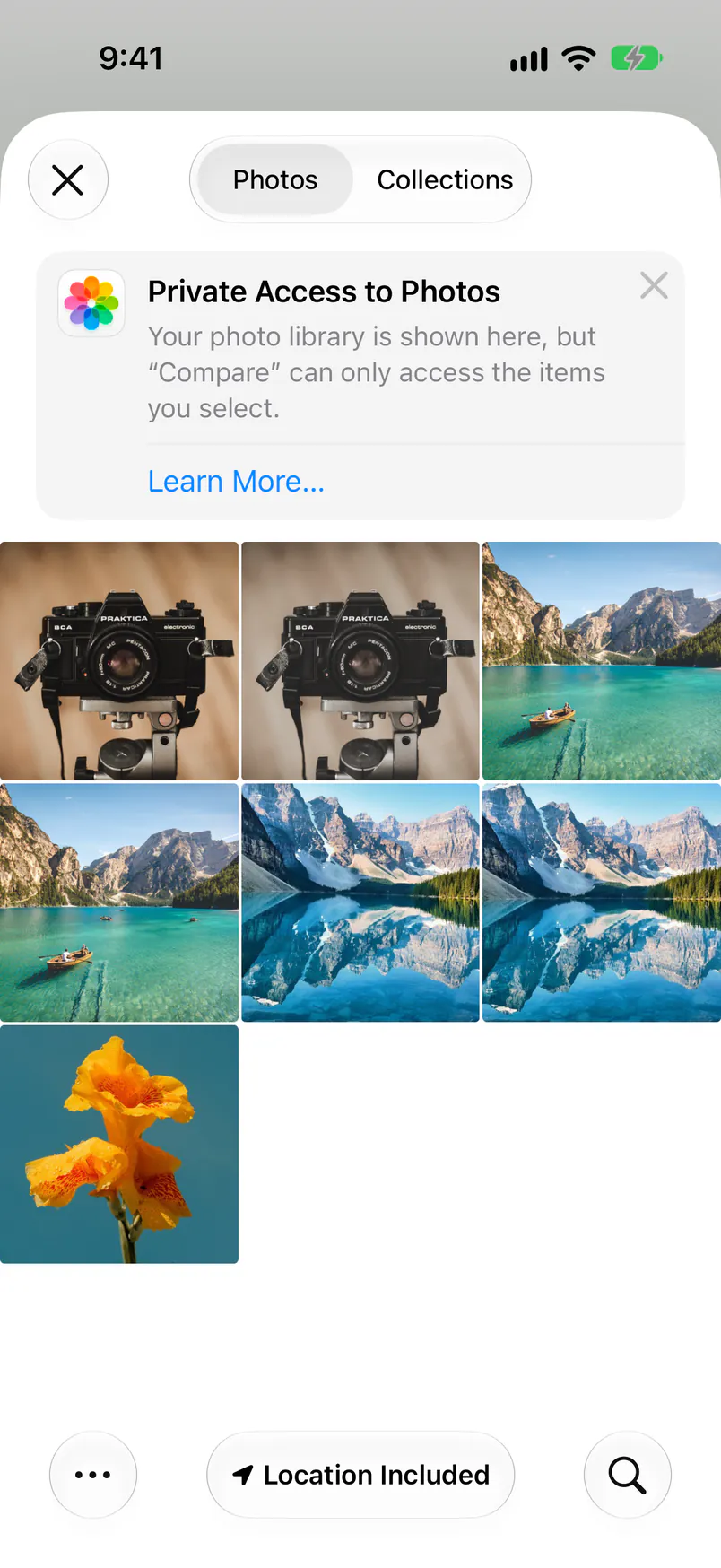
Pick one image each from your photo library with “1 Select Image” and “2 Select Image”. Only the photos you pick are passed to the app, so you don't need to give it access to your photo library.
| How to pick | What to do |
|---|---|
| Select Image | Tap “1 Select Image” or “2 Select Image”, then tap one photo. The picker closes by itself. You can also open an album from Collections. |
| Tap an image | In Concurrent and Difference, tap an image on screen to pick a different one in its place. |
🔢 Image 1 and image 2
In Slide, image 1 is left of the divider and image 2 is to the right; in Opacity, image 2 lies over image 1. Position adjustment moves image 2, so make the photo you want as the reference (the unedited or earlier one) image 1.
📁 Comparing images in Files
You can pick images from your photo library. For images or screenshots in the Files app, save them to Photos first, for example with Save Image in the share sheet.
🌈 HDR photos
On iOS 17 and later, HDR photos are shown in HDR, with their bright areas kept bright. The difference is calculated in SDR.
⏳ Picked images aren't kept
The images you pick are cleared when the app quits. Pick them again the next time you open it. Your original photos stay as they are.
Side by Side (Concurrent)
The Concurrent tab shows image 1 and image 2 next to each other. Use it to compare a before and after, or a series of progress photos, as a whole.

↔️ Stacked or side by side, automatically
The app chooses the arrangement that shows both images largest, based on their shape and the screen orientation. On an iPhone held upright, wide photos are stacked and tall screenshots sit side by side. Image 1 is on top or on the left.
👆 Tap to replace
Tap an image to open the photo picker and replace just that image. This tab doesn't zoom, so check details by zooming in Slide or Opacity.
Slider (Slide)
The Slide tab stacks the two images and shows image 1 to the left of a vertical divider and image 2 to the right. You switch between them while looking at the same spot, which makes it ideal for comparing before and after an edit or retouch.
| Gesture | What it does |
|---|---|
| Drag the divider | Drag the vertical divider line left or right to move it. It starts in the middle of the screen. |
| Tap | Moves the divider to the edge of the screen to show only image 2. Tap again to show only image 1. Flipping quickly between the two is a handy way to spot changes. |
| Pinch, drag, double-tap | Zoom, move around, and go back to the full view (see Zooming and moving). |
Zooming and moving
In Slide and Opacity, the two images zoom and move together. They stay lined up while zoomed, so you can compare fine details at exactly the same spot.
🔎 Pinch to zoom
Spread two fingers to zoom in and pinch to zoom out. The zoom stays when you switch between Slide and Opacity.
✋ Drag to move
Drag the image to move around. In Slide, a drag that starts on the divider line moves the divider, so start away from the line.
🔄 Double-tap to reset
Resets zoom and position. The position, size, and angle of image 2 set with position adjustment are reset too.
Overlay (Opacity)
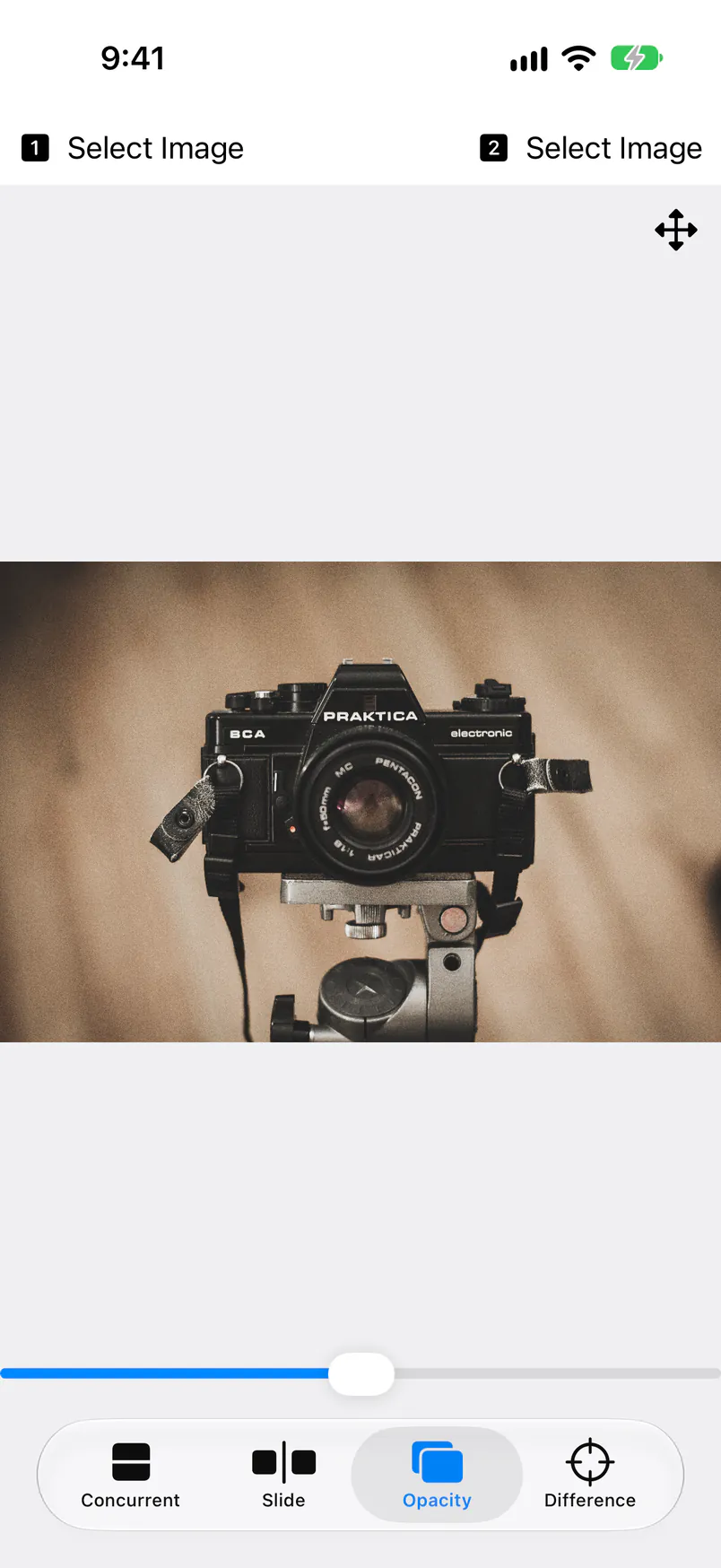
The Opacity tab lays a partly transparent image 2 over image 1. Use it to find shifts between the two or things that changed little by little.
| Setting | Default | Description |
|---|---|---|
| Slider at the bottom | 50% |
The opacity of image 2. At the left end you see only image 1, at the right end only image 2. Around the middle, the two show through each other half and half. |
👆 Tap to switch
Tap the image to hide image 2 (0% opacity) and see only image 1. Tap again to see only image 2 (100%).
🔎 Zoom and move
As in Slide, pinch to zoom, drag to move, and double-tap to reset (see Zooming and moving).
Position Adjustment
Two photos taken separately rarely match exactly in camera position and tilt. With position adjustment on, you move only image 2 to lay it over image 1. It works in Slide and Opacity.
Turn on position adjustment in Opacity
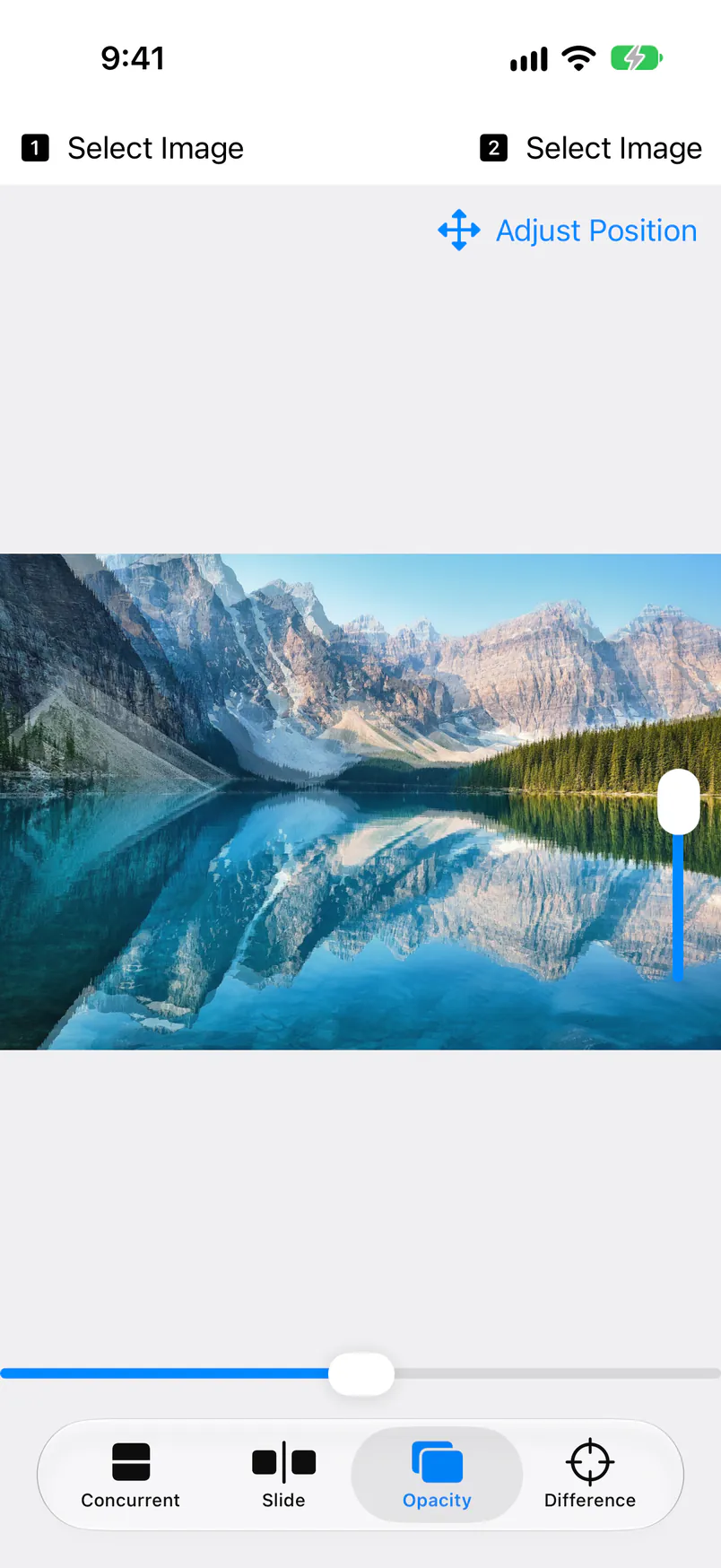
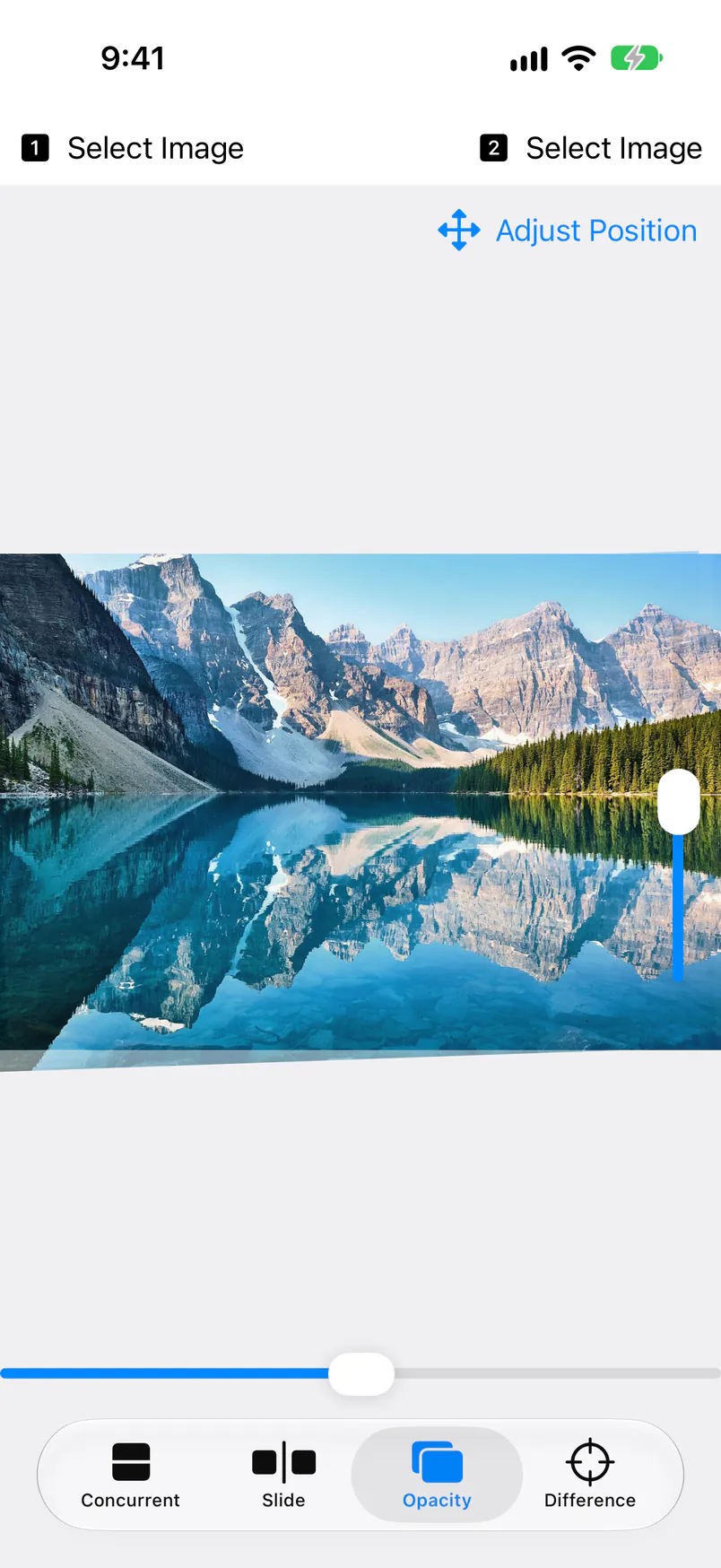
In Opacity, where the overlap is easiest to see, tap the button with arrows pointing four ways at the top right. It turns blue and reads “Adjust Position”, and an angle slider appears at the right edge (in Slide, the button reads “Adjust Overlap”).
Move image 2 into place
Drag to move it, pinch to match the size, and rotate with two fingers or the slider at the right edge to match the angle. When outlines no longer look doubled, the images line up.
Turn it off and compare
Tap the button again to turn position adjustment off. The alignment stays, so Slide shows the images lined up the same way.
| Gesture with adjustment on | What it does |
|---|---|
| Drag | Moves image 2 at one fifth of your finger's speed, for fine adjustment. |
| Pinch | Scales image 2 only. |
| Two-finger rotate | Rotates image 2. Works together with a pinch. |
| Slider at the right edge | Sets the angle of image 2 from −180° to 180° in 0.5° steps. Moving it up rotates counterclockwise. Double-tap the slider anywhere except the knob to reset only the angle to 0°. |
🔗 Shared by Slide and Opacity
The position, size, and angle you set, and whether position adjustment is on, are shared by Slide and Opacity. Line the images up in Opacity, then switch to Slide to compare them across the divider.
🔄 Double-tap to reset
Double-tap the image to reset the position, size, and angle of image 2. The adjustment stays when you pick a different image, so double-tap before comparing other photos.
⚠️ Not used for Difference
Difference calculates from the images you picked, as they are. Position adjustment isn't applied, so make difference images from photos taken from the same spot or from edited copies of the same image.
Difference
The Difference tab makes an image that shows only what differs, from the pixel-by-pixel difference of the two images. Use it to find changes that are easy to miss, such as what a retouch touched or what changed between two screenshots.
| Button / display | What it does |
|---|---|
| Diff(Express) | Shrinks both images to the width of the screen, then makes the difference image. It finishes right away, so start here to find where the changes are. On an iPhone 17 Pro held upright, the difference image is 402 px wide. |
| Diff(Original Quality 1-2 mins) | Makes the difference image at the full resolution of the originals. It works when both images have the same width and height in pixels. Larger images take longer. |
| Export Image | Appears once the difference image is ready. Opens the share sheet to save the image to Photos or send it to another app (see Saving the Difference Image). |
| Please Select the same aspect Images. | Shown when the two images have very different aspect ratios (one wide and one tall, for example). No difference image can be made then. |
When you turn your iPhone or iPad sideways, the two images sit on the left, the buttons in the middle, and the difference image on the right, and the buttons read “Express” and “Original Quality (1-2mins)”.
Reading the difference image
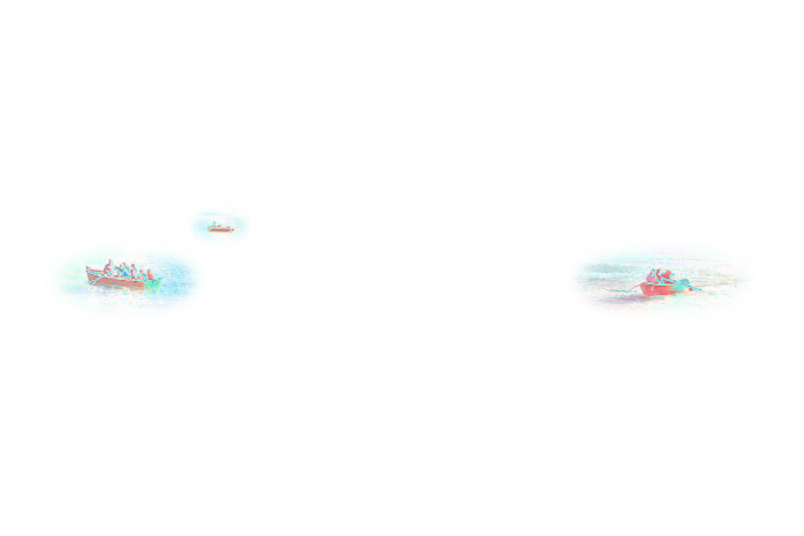
Each pixel of the difference image is white minus the color difference between the two images at that spot. Areas that match exactly are white, and the bigger the difference, the stronger the color. You can pinch to zoom, drag to move, and double-tap to reset on the difference image too.
📏 Use two images of the same size
Difference compares pixels at the same position in both images. Use it on two images with the same framing and size, such as an original photo and an edited or retouched copy, and only the changes stand out.
⚡️ Express and Original Quality
Express shrinks the images before comparing, so small changes come out faint. Once you know where the changes are, make it again with Original Quality and zoom in to see their shape. Compare images of different sizes (an original and a resized copy, for example) with Express.
⚠️ Separate shots show outlines
If the images are even slightly out of line, outlines across the whole picture show up in color. Position adjustment isn't used for Difference, so compare photos taken separately in Slide or Opacity.
Saving the Difference Image
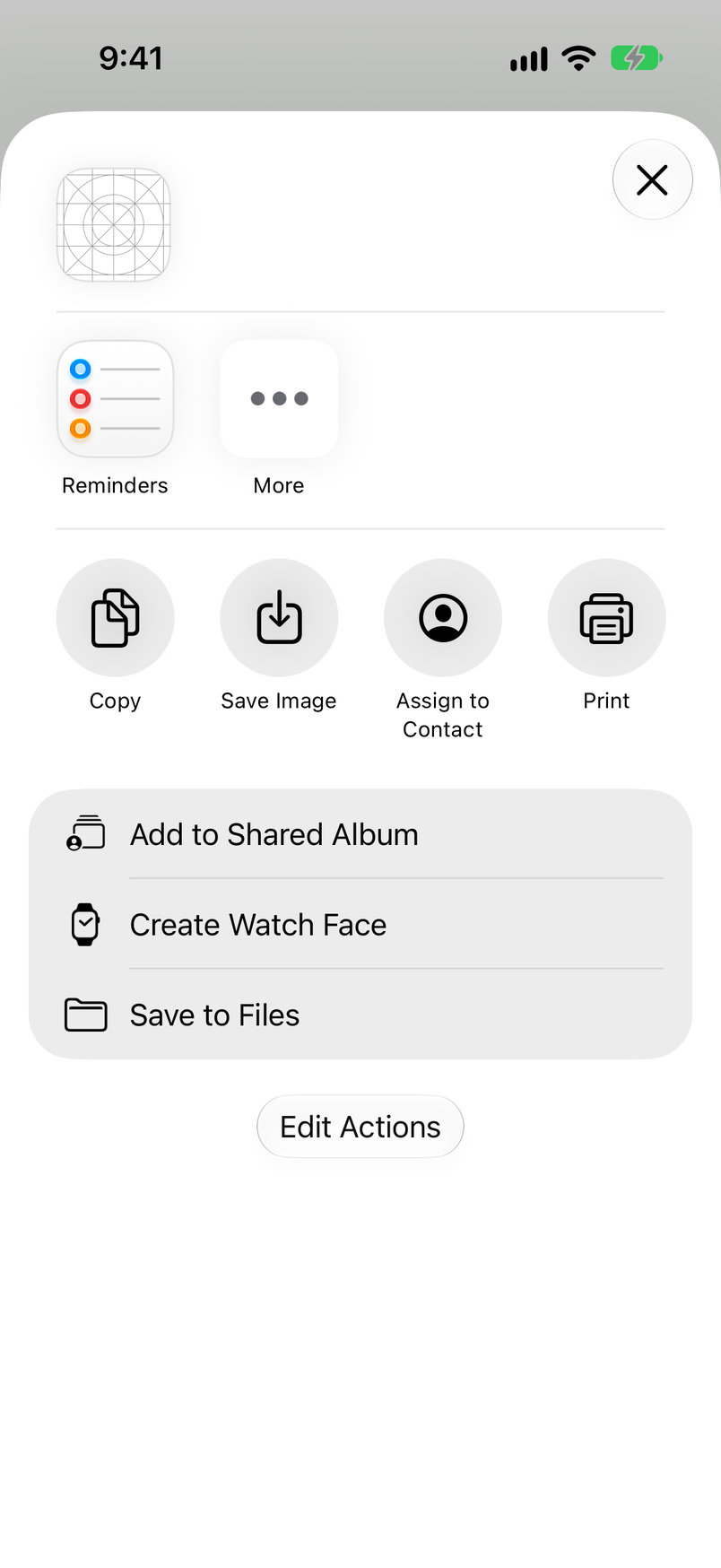
From the share sheet that Export Image opens, you can save the difference image to Photos or send it with AirDrop or to another app. Only the difference image is saved; the two originals don't change.
Tap Export Image
After you make a difference image in Difference, Export Image appears at the bottom. Tap it to open the share sheet.
Tap Save Image
Tap Save Image in the share sheet to save the difference image to your photo library as a JPEG. Choose Save to Files to save it in the Files app instead.
Allow access the first time
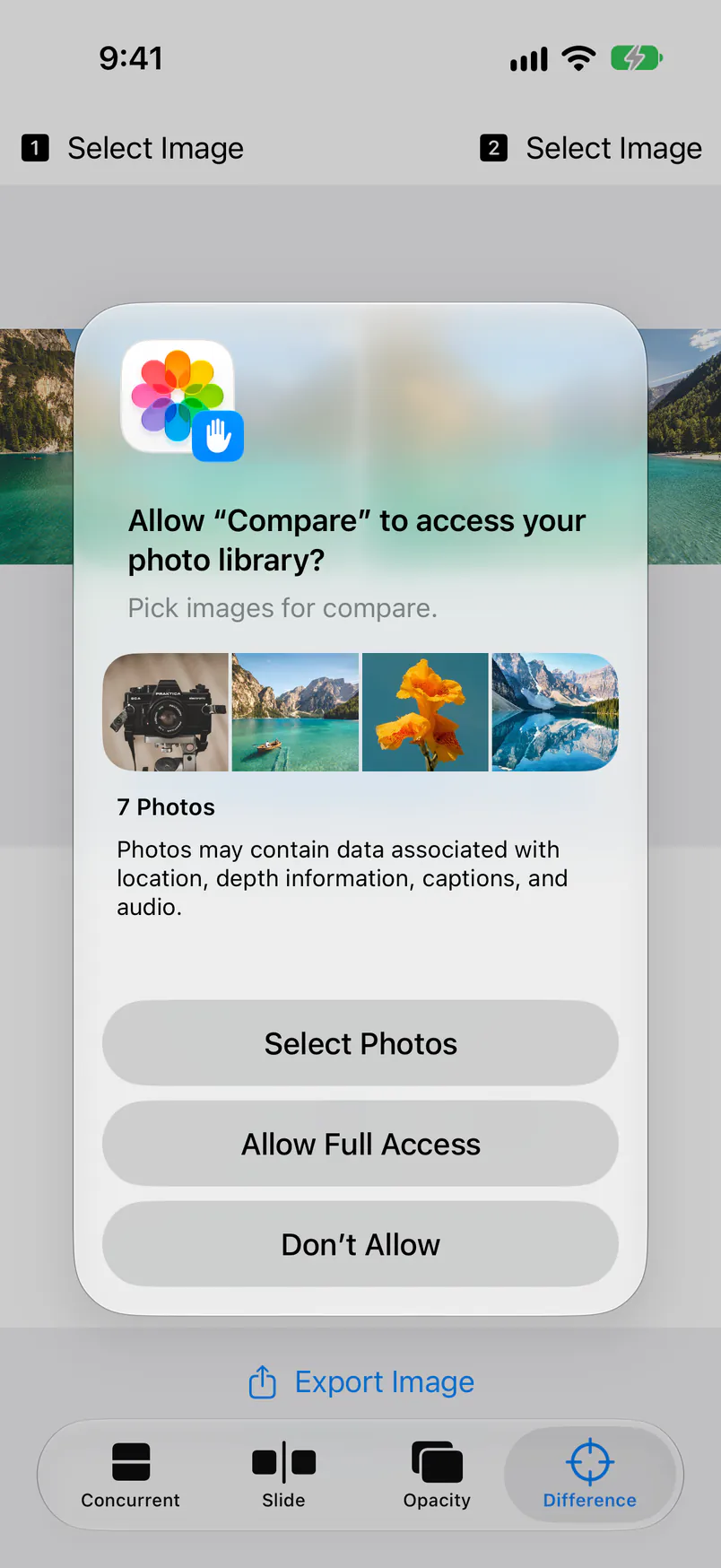
The first time you use Save Image, you're asked to allow access to your photo library. Choose “Select Photos” or “Allow Full Access” and the image is saved. If you choose “Select Photos”, you don't need to select any photos afterward.
📏 Saved size
A difference image made with Express is saved at the width of the screen (402 px wide on an iPhone 17 Pro held upright). To keep it at the size of the originals, make it with Original Quality before saving.
⚠️ If you chose “Don’t Allow”
With “Don’t Allow”, nothing is saved and no message appears. In the Settings app, open Photos for “Compare”, allow access, and save again.
Free Version & Image Compare+
Image Compare. is free, with every feature available. For a version without ads, there is a separate paid app, Image Compare+ (one-time purchase).
| Feature | Image Compare. (free) | Image Compare+ |
|---|---|---|
| Four ways to compare and position adjustment | ✓ | ✓ |
| Making and saving difference images | ✓ | ✓ |
| Ads | At the bottom of the screen before you pick images | None |
| Tracking permission prompt | Shown on first launch | None |
🆓 Ads in the free version
Ads appear at the bottom of Concurrent, Slide, and Opacity before you pick images. They go away once you pick images and never cover the comparison. Sometimes a note about Image Compare+ appears in place of the ad.
🌐 Tracking permission
On first launch, the free version asks whether to allow tracking your activity for ads. Every feature works whichever you choose.
💳 Removing ads
There are no in-app purchases. To remove ads, buy Image Compare+ on the App Store. The app keeps no images or settings, so there's nothing to transfer.
Supported Images & Requirements
The images you can compare, the image that is saved, and system requirements. Image Compare. and Image Compare+ are the same.
| Item | Details |
|---|---|
| Images you can compare | Images in your photo library that your iPhone or iPad can display, such as JPEG, PNG, and HEIC (screenshots included). HDR photos are shown in HDR on iOS 17 and later. |
| Saved image | The difference image, as a JPEG: at the width of the screen with Express, at the size of the originals with Original Quality. |
| Requirements | iPhone with iOS 15 or later, iPad with iPadOS 15 or later |
| Language | English (parts of the photo picker and share sheet follow your device's language) |
| Name on the Home Screen | Compare (for both Image Compare. and Image Compare+) |
| Where images are processed | Everything happens on your iPhone or iPad; images are never sent to a server. The app works without an internet connection. |
FAQ
Answers to common questions about comparing and saving images.
Q. Are my photos uploaded or changed?
No. Image Compare. only loads the photos you pick on your device to show and calculate them. It never rewrites or deletes your originals, and the only thing it saves to Photos is a difference image, when you choose Save Image.
Q. Why is the difference image almost all white?
Because the two images are nearly the same. Matching areas are white, and small differences come out in pale colors. Express compares shrunken images, which makes small changes even fainter. Make it again with Original Quality and pinch to zoom in.
Q. I lined the images up. Why doesn't the difference image reflect it?
Because the difference is calculated from the images you picked, as they are. Position adjustment only applies to Slide and Opacity. For photos taken separately, line them up and compare them in Slide or Opacity (see Position Adjustment).
Q. Why does “Please Select the same aspect Images.” appear?
The two images have very different aspect ratios, such as a wide photo and a tall one. Difference images are made from two images with the same framing and size. Crop both to the same aspect ratio with Edit in the Photos app, then pick them again.
Q. Why can't I make a difference image with Original Quality?
Original Quality only works when both images have the same width and height in pixels. When the sizes differ, such as an original photo and a resized copy, compare them with Diff(Express).
Q. Why isn't anything saved when I tap Save Image?
The app isn't allowed to access your photo library. In the Settings app, open Photos for “Compare”, allow access, then choose Save Image from Export Image again (see Saving the Difference Image).
Q. I can't find the app on my Home Screen
Image Compare. and Image Compare+ appear as “Compare” on the Home Screen and in the Settings app. Search for “Compare” on the Home Screen to find it.
Q. Are the images I picked still there next time?
No. When the app quits, the images you picked, the zoom, and the position adjustment are cleared. Pick them again with Select Image the next time you open it.
Q. Can I turn off the ads?
The free Image Compare. has no in-app purchases, so to remove ads, buy the paid Image Compare+. The features are the same. Ads in the free version only appear on the screen before you pick images (see Free Version & Image Compare+).